 Skyport
Projects and teams
Updated October 17, 2026
A project groups instances, volumes and networks, with its own quotas and its own members. Your organisation can have several.
Create a project#
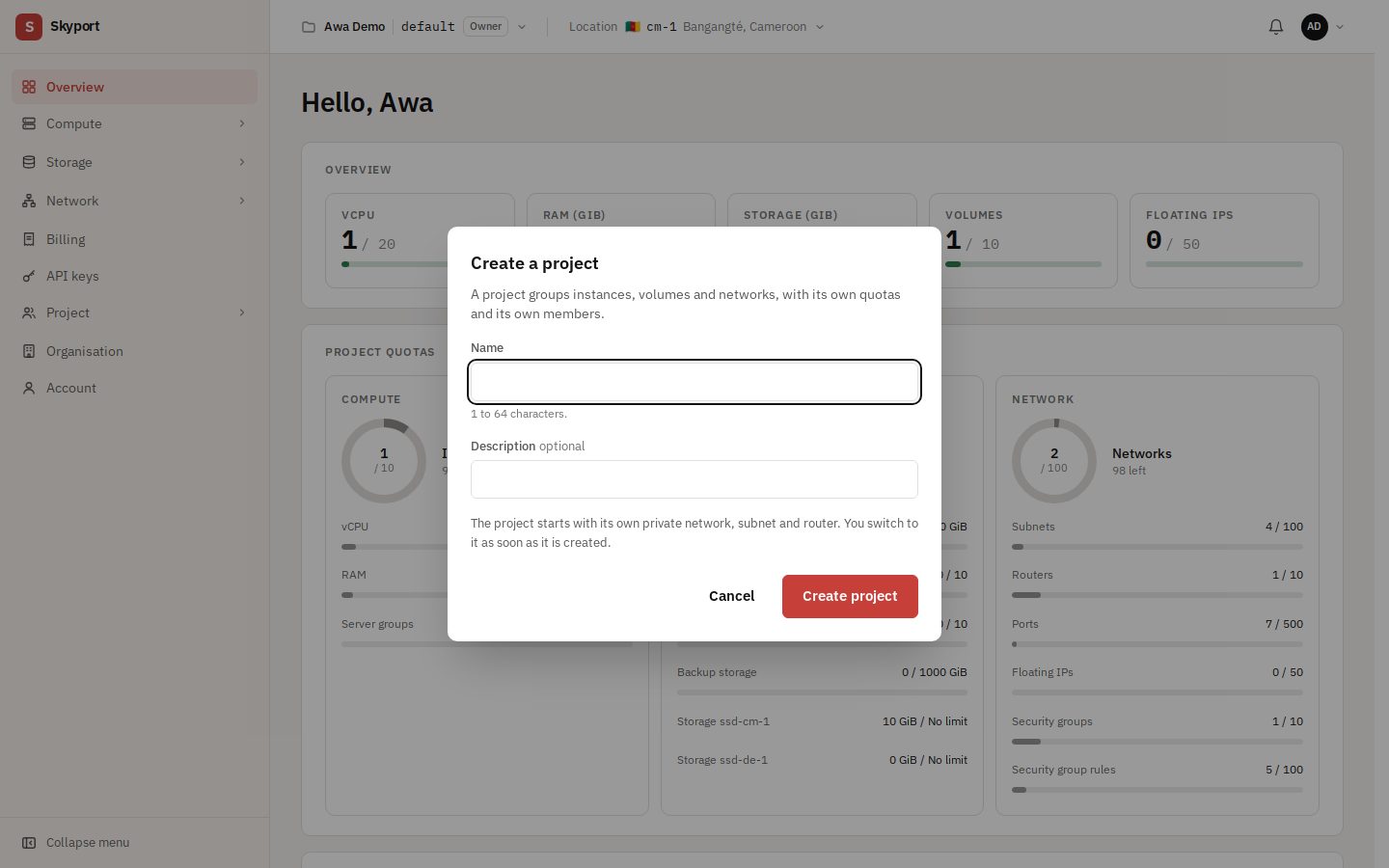
- Open the Project switcher in the top bar, then choose Create a project.
- Give it a name (1 to 64 characters) and, if you like, a description.
- Choose Create project. It starts with its own private network, subnet and router, and you switch to it right away.
Invite members#
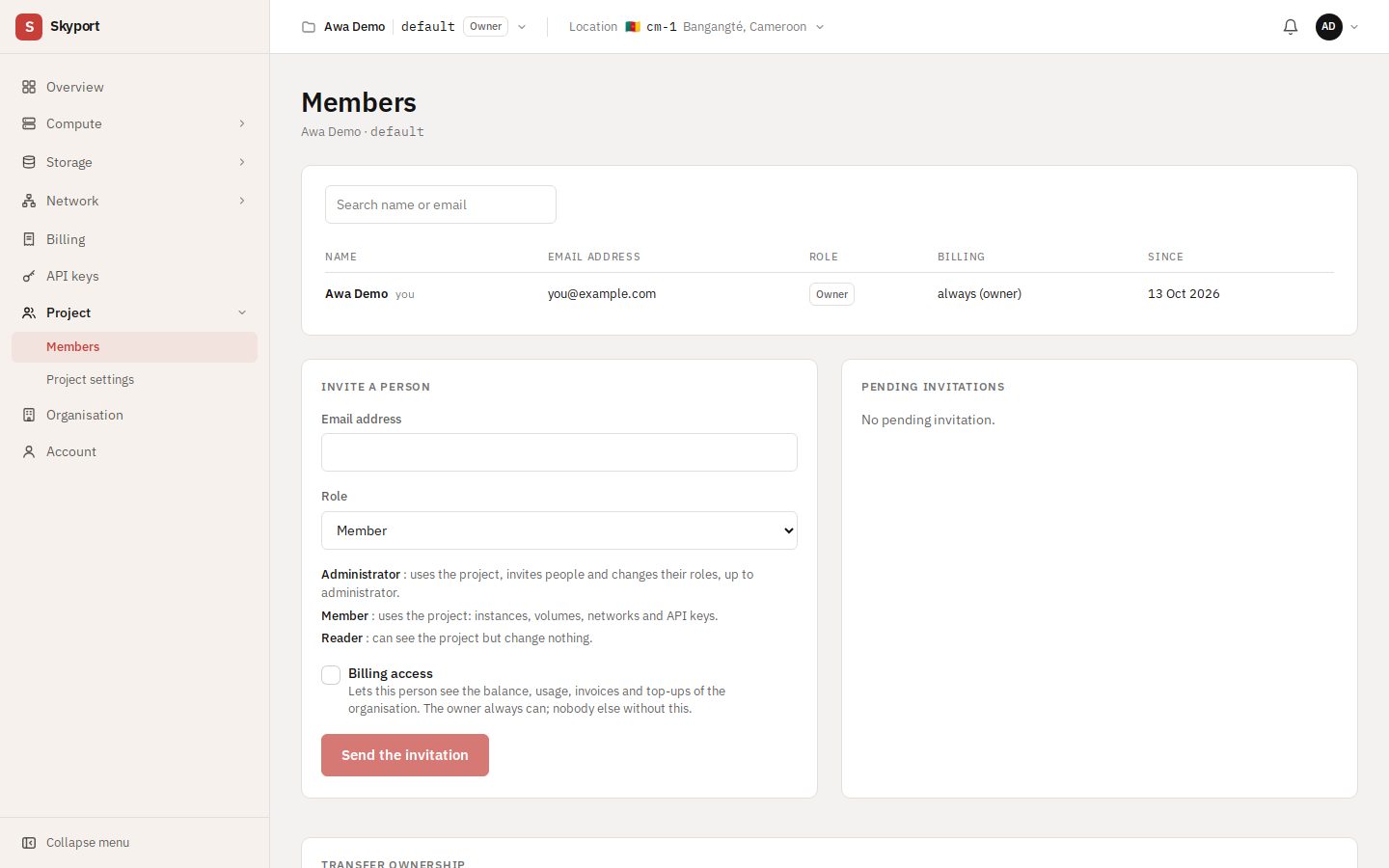
In Project › Members, the Invite a person section asks for the email address and the role; then choose Send the invitation. The roles:
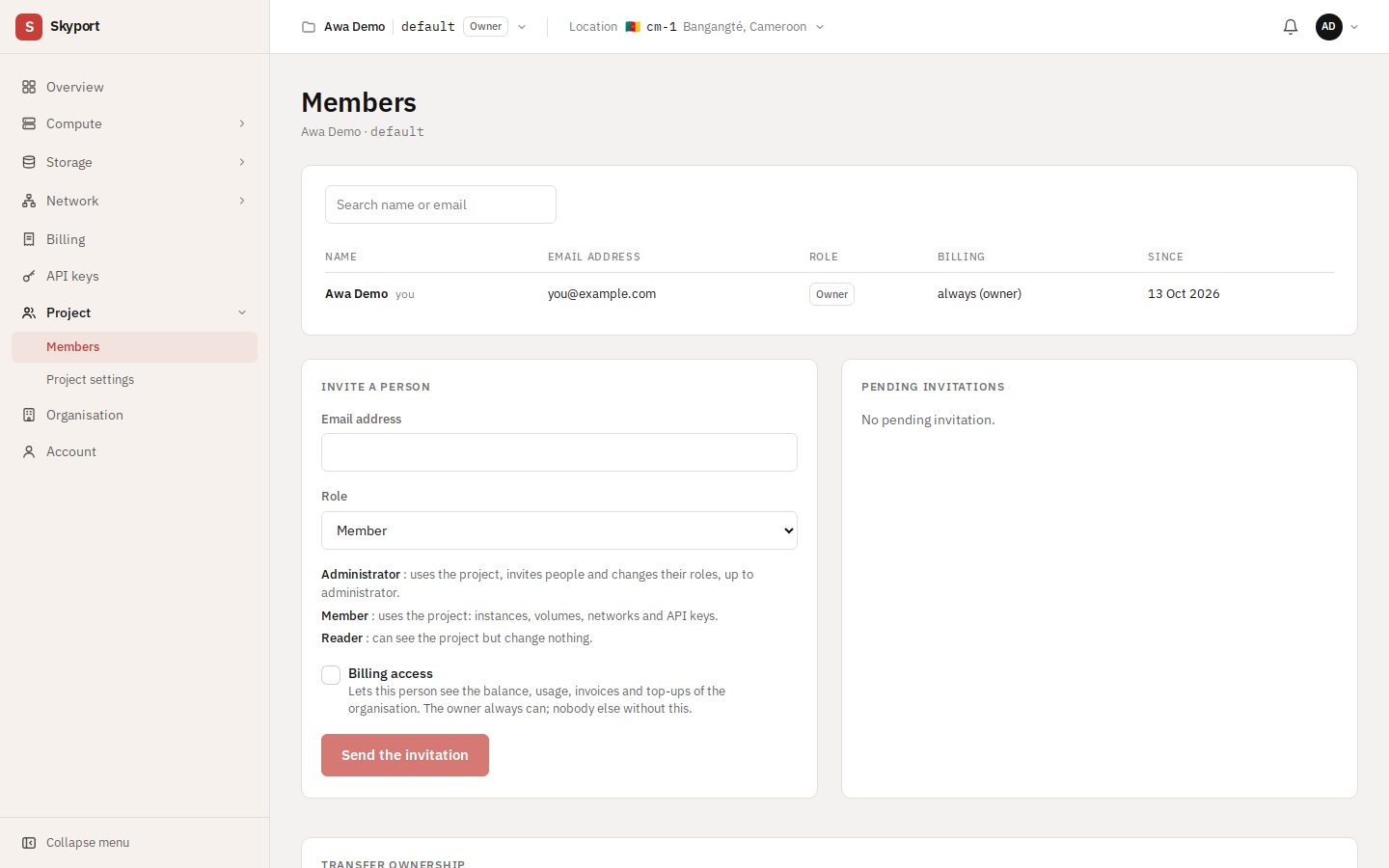
| Role | What it allows |
|---|---|
| Owner | One per project. They can offer the project to someone else with Transfer ownership. |
| Administrator | Uses the project, invites people and changes their roles, up to administrator. |
| Member | Uses the project: instances, volumes, networks and API keys. |
| Viewer | Can see the project but change nothing. |
Tick billing access for a person to see the balance, usage, invoices and top-ups. The owner always has it; nobody else without that box. Invitations not yet accepted stay under Pending invitations.
Transfer ownership#
In Members, Transfer ownership offers the project to the owner or an administrator of the organisation who is a member of the project. They have 7 days to accept; you then stay an administrator of the project.
Settings and deletion#
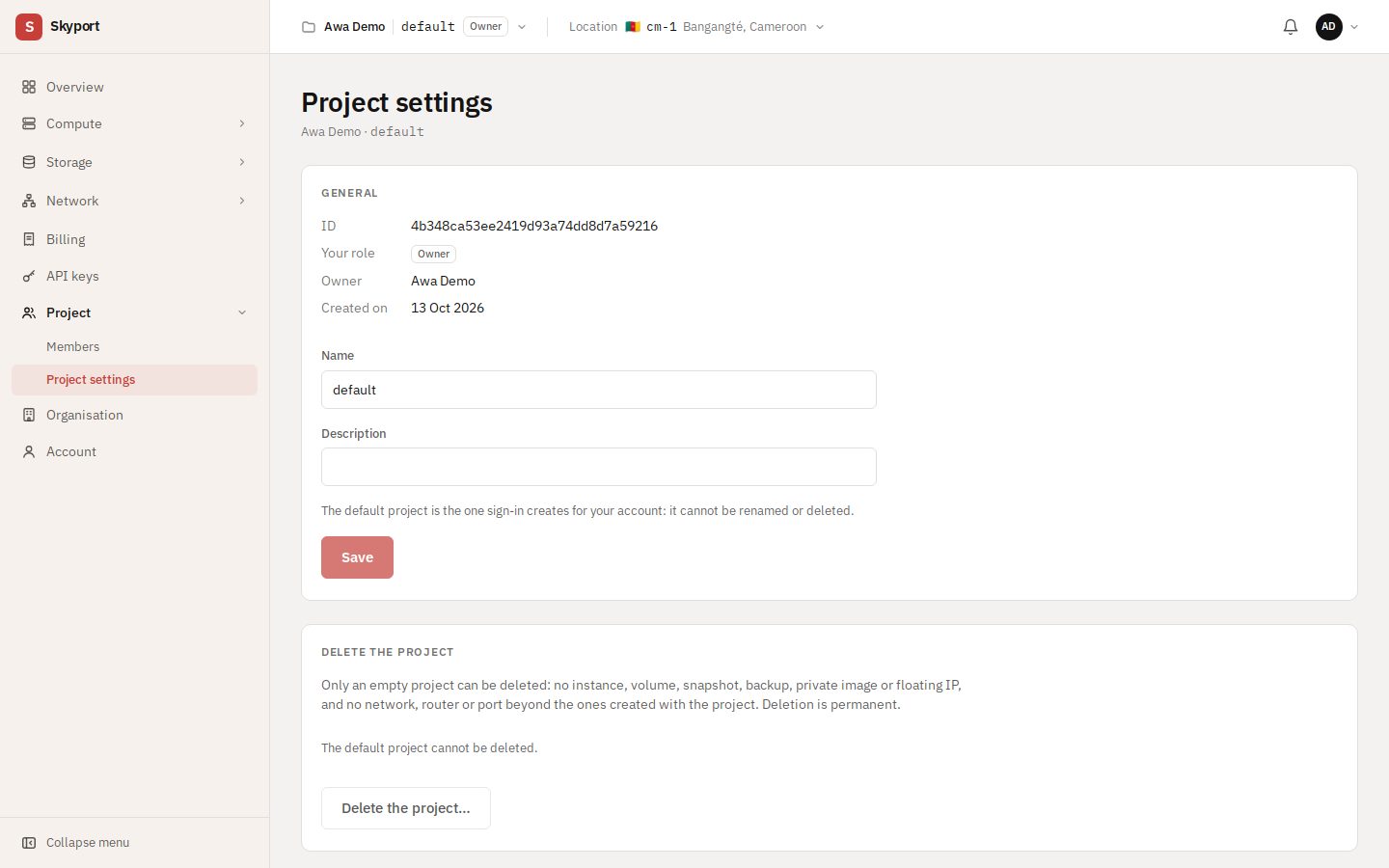
Project settings edits the name and description; only the project's owner and administrators can. To Delete the project, it must be empty: the page lists what to remove first, and you confirm by typing its name. Its network, subnet and router are deleted with it.
The default project, created with your account, can be neither renamed nor deleted, and neither can an organisation's last project.
The organisation#
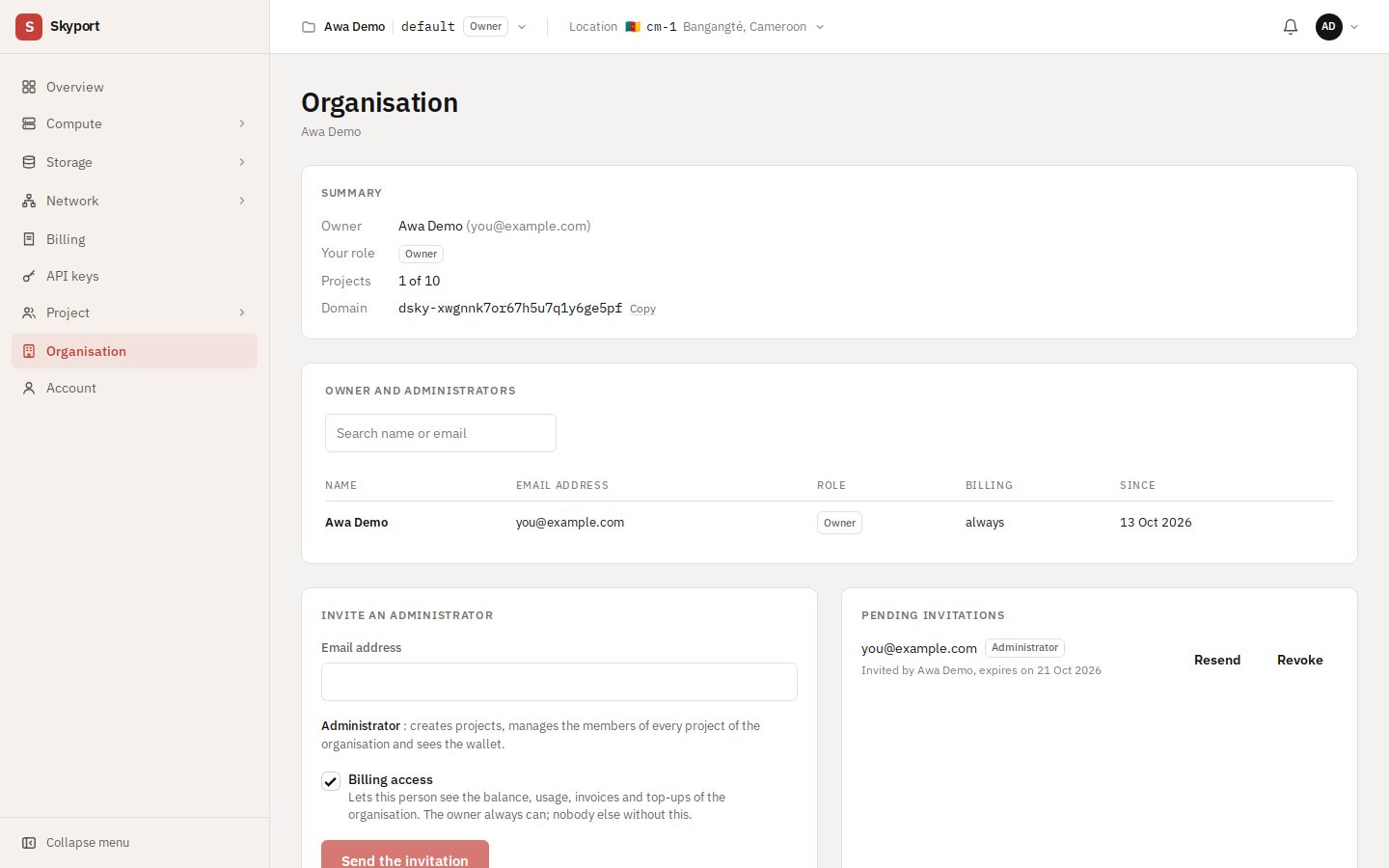
The Organisation page shows the owner and administrators, and the Activity log across projects. An organisation administrator creates projects, manages the members of every project and sees the balance; invite one from the Invite an administrator section.
Transfer the organisation offers it to one of its administrators, who has 7 days to accept; you stay an administrator. To close it, see Account.