Skyport
Compute
Updated October 17, 2026
Instances are your virtual machines. This guide covers creating them, connecting, everyday actions and snapshots.
The Instances page#
In Compute › Instances, each row shows the image, IP addresses, floating IP, flavor, status and location. Search by name, or filter by status.
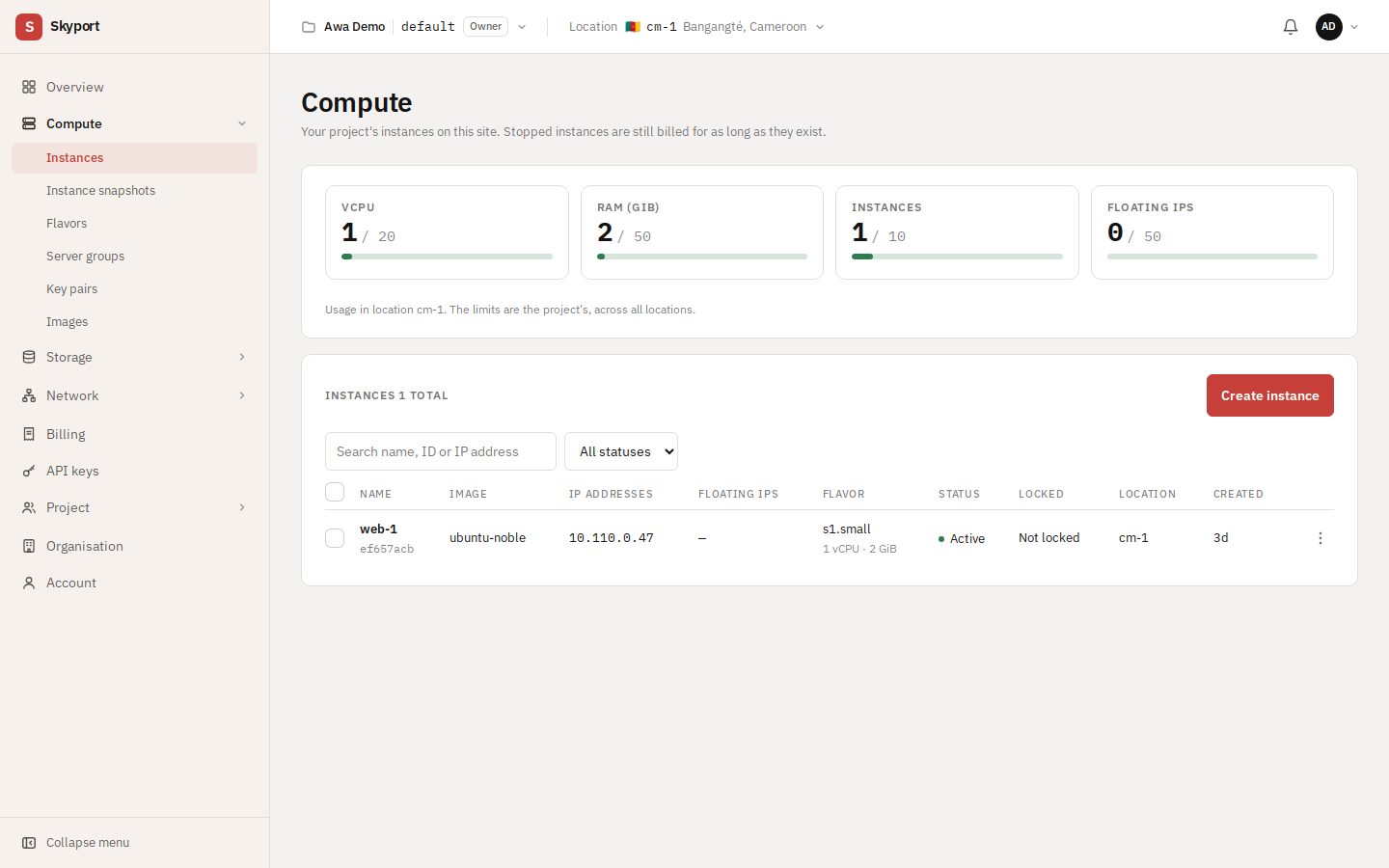
A stopped instance is still billed for as long as it exists. Delete it to stop its billing.
Create an instance#
Choose Create instance. The wizard fits on one page; the summary on the right updates with each choice, with the price estimate and your quotas after creation.
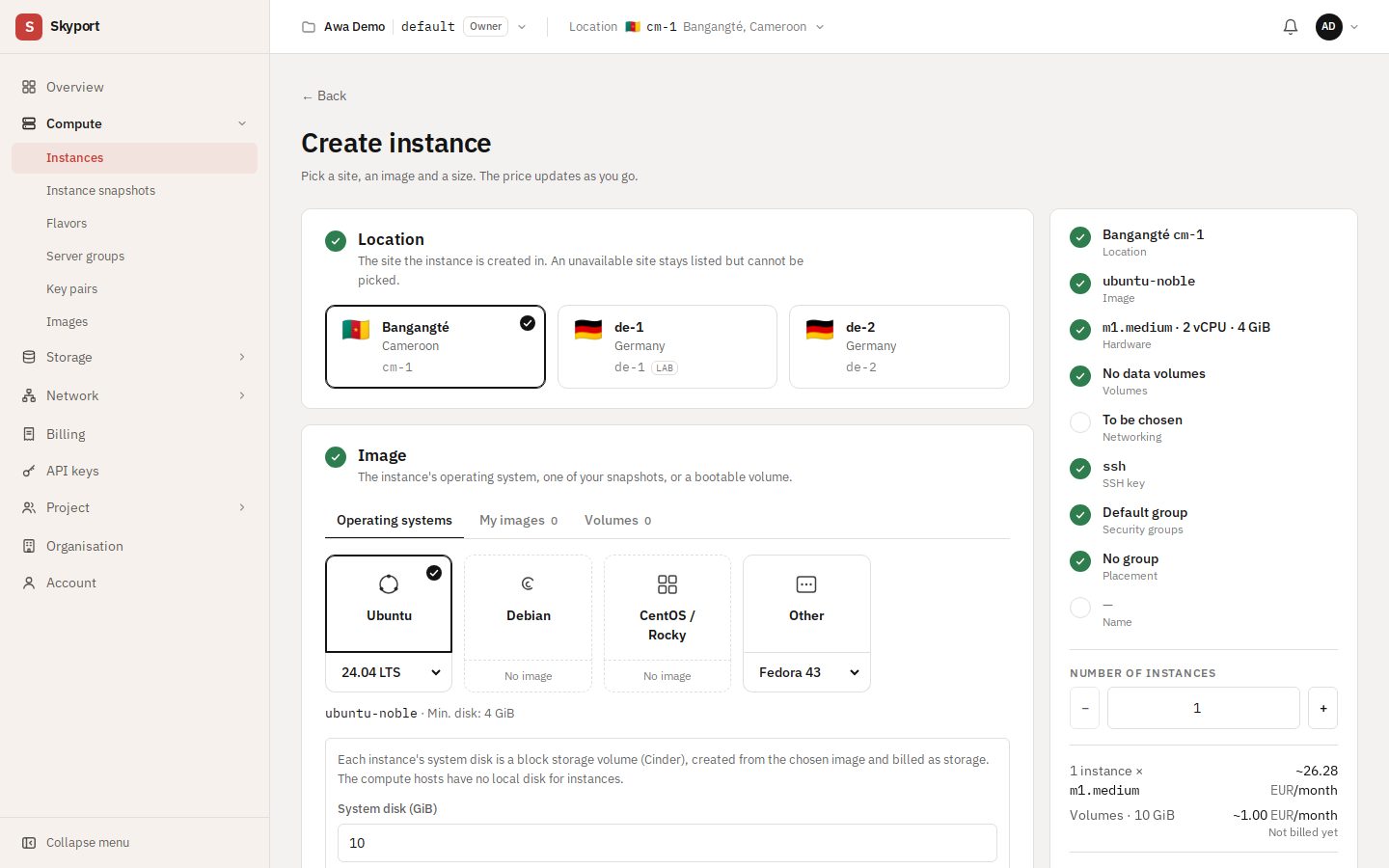
- Location: the site where the instance is created. An unavailable location stays visible but cannot be chosen.
- Image: an operating system (Ubuntu, Fedora…), one of My images (your snapshots), or a bootable volume. Set the system disk size: it is a volume created with the instance and deleted with it.
- Hardware: the flavor, that is vCPU, RAM and disk. Tabs group them by use (general, compute, memory, dedicated).
- Volumes (optional): add data volumes, created empty and attached to the instance. Tick Delete with the instance for a volume to go with it.
- Networking: the network the instance joins. If that network has several subnets, also choose the Subnet the instance gets its address from; the first one is preselected. Tick Plan for a floating IP if the instance must be reachable from the internet; the address is then assigned from the instance page.
- SSH key: pick a key pair (recommended), or the Password tab for an Admin password of at least 8 characters. + Import an SSH key adds a public key without leaving the wizard. See Key pairs.
- Security groups: the traffic rules. With none chosen, the project's default group applies.
- Placement (optional): a server group spreads your instances over several hosts, or keeps them together.
- Name: lowercase letters, digits and hyphens; it cannot start or end with a hyphen.
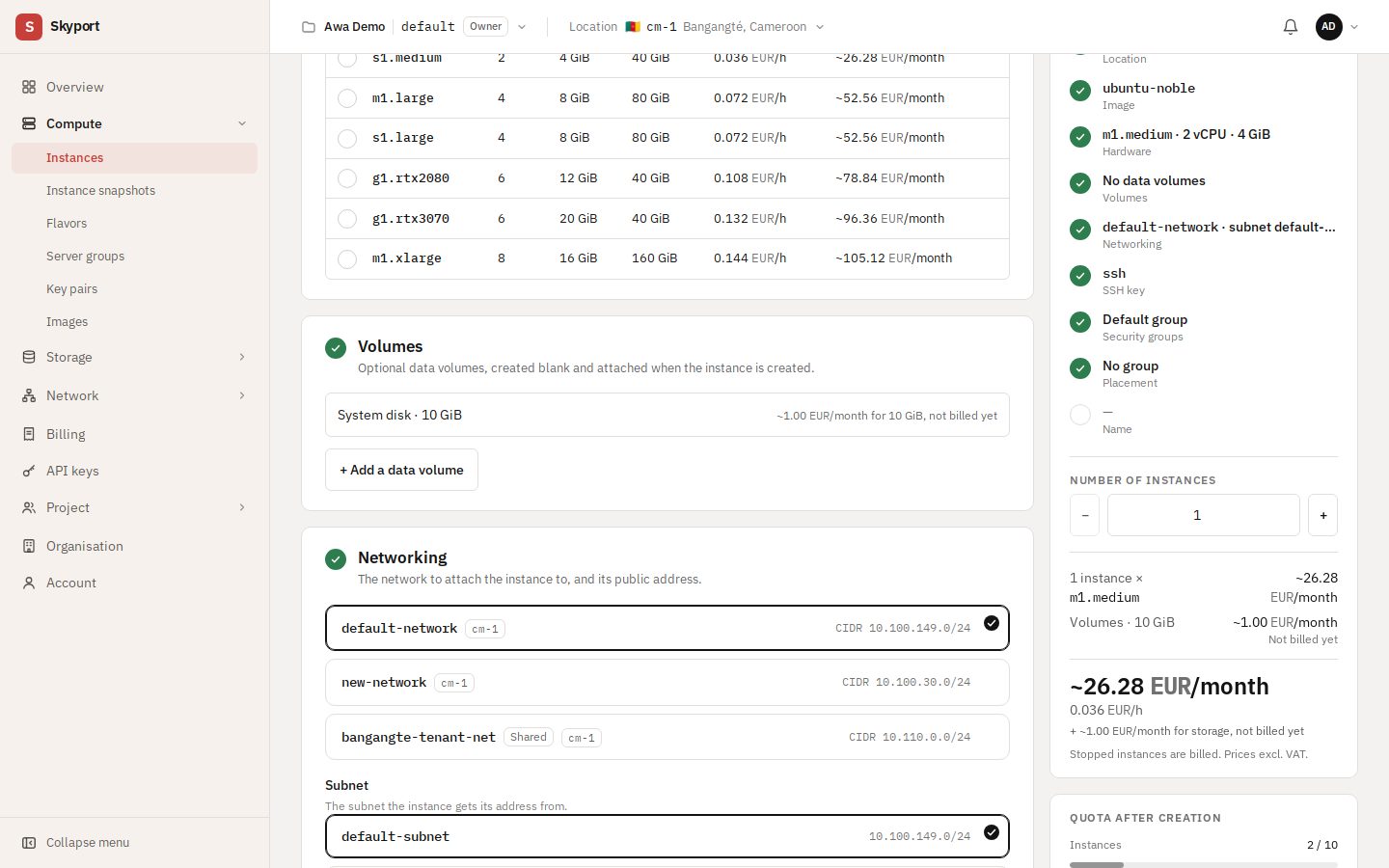
Set the Number of instances if needed, then choose Create instance. The instance is available within 60 to 90 seconds.
Key pairs#
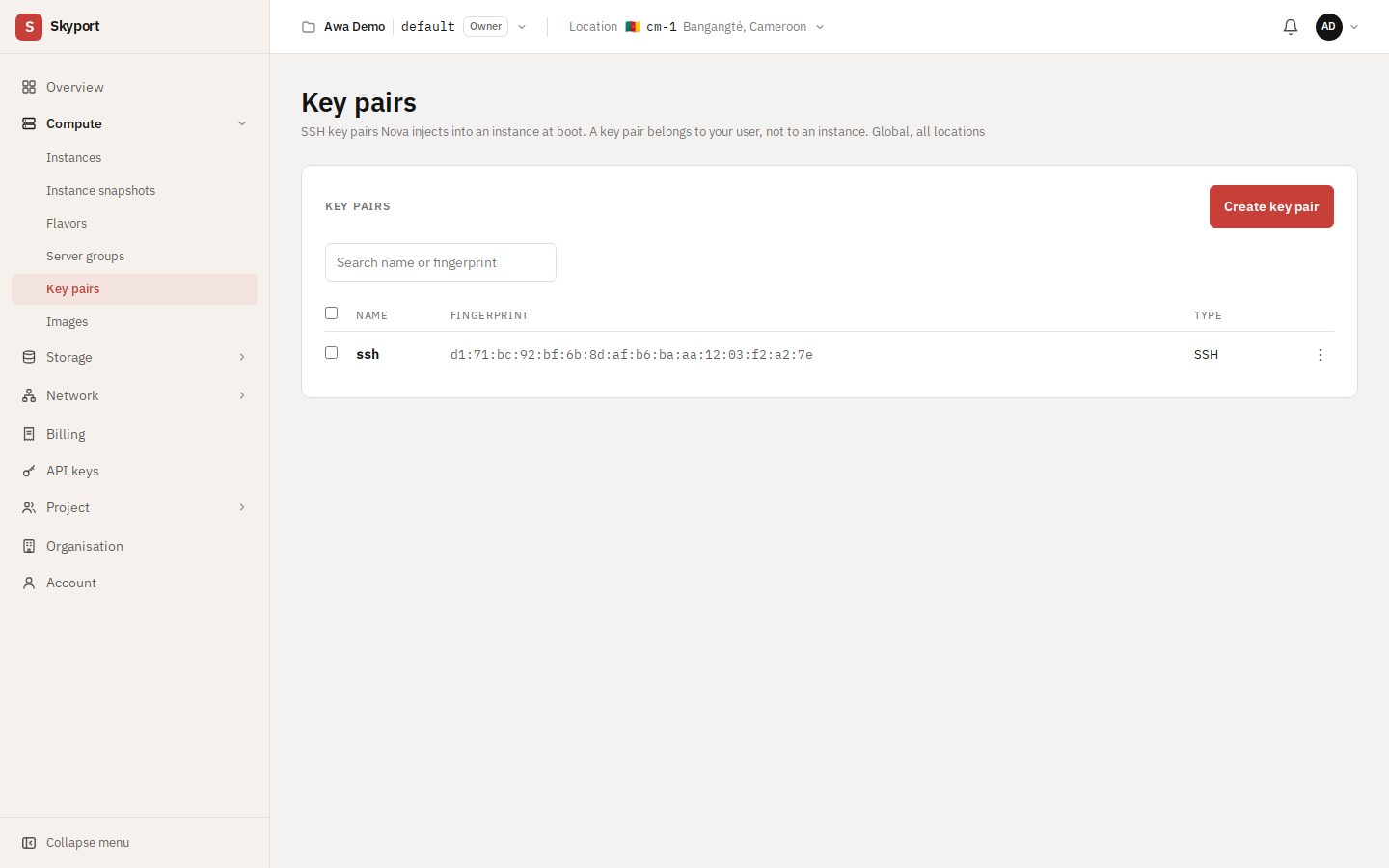
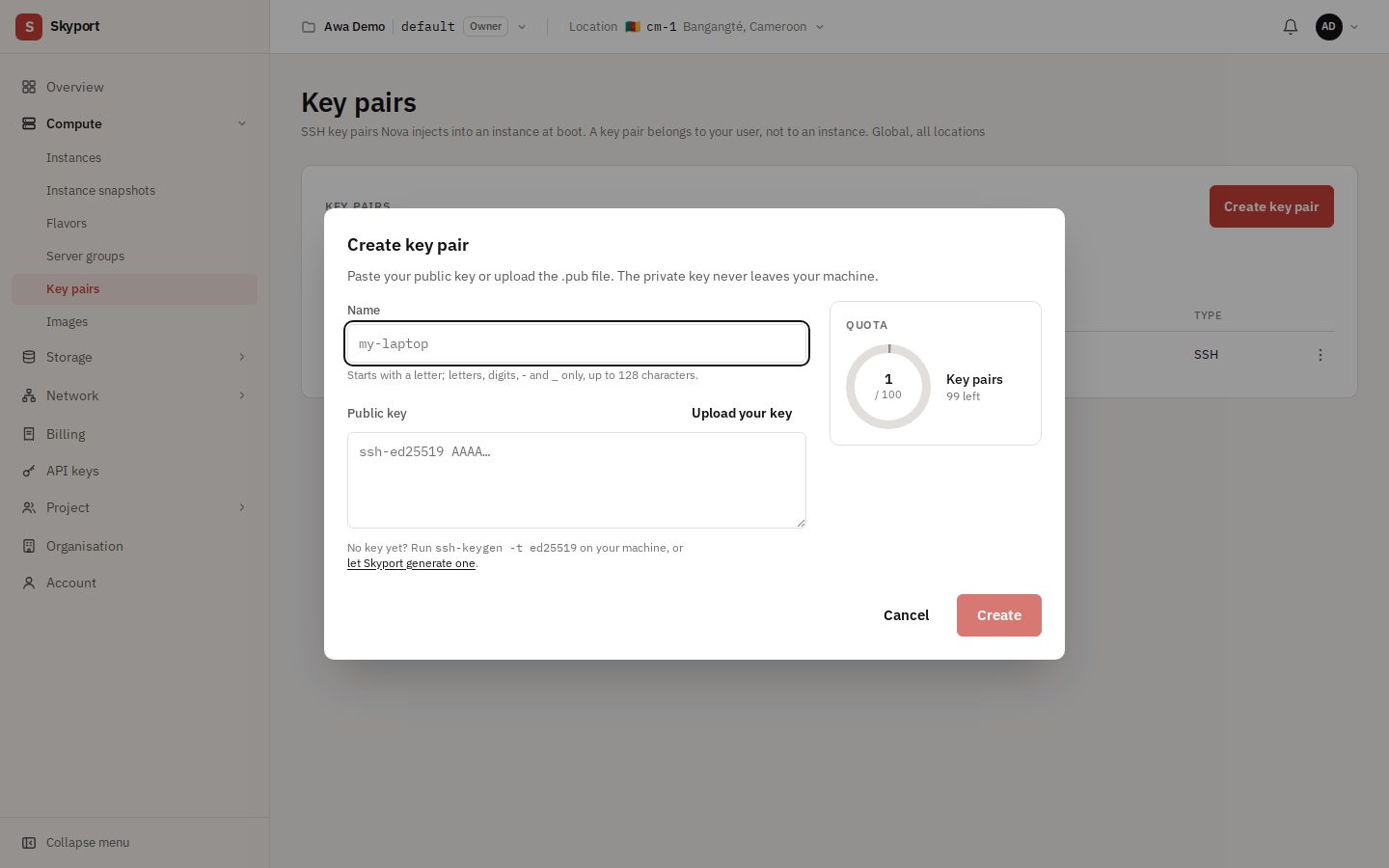
In Compute › Key pairs, Create key pair generates a key for you. The private key is shown only once: download it before closing the window, nobody keeps a copy.
chmod 600 my-key.pem
ssh -i my-key.pem user@address
Already have a key? Choose Upload your key (.pub), or import it from your Account page. To create one on your computer: ssh-keygen -t ed25519.
Connect to an instance#
- Over SSH: from the internet, the instance needs a floating IP and a security group that allows port 22. See Network.
- Through the console: Open console shows the instance's screen and keyboard, even without network access. It works while the instance is active or in rescue mode. If the connection drops, choose Reconnect to request a new link.
Instance actions#
A row's ⋮ menu, or the More menu on the instance page, groups actions by theme: Instance status, Related resources, Backups & Snapshots, Configuration update. You will find:
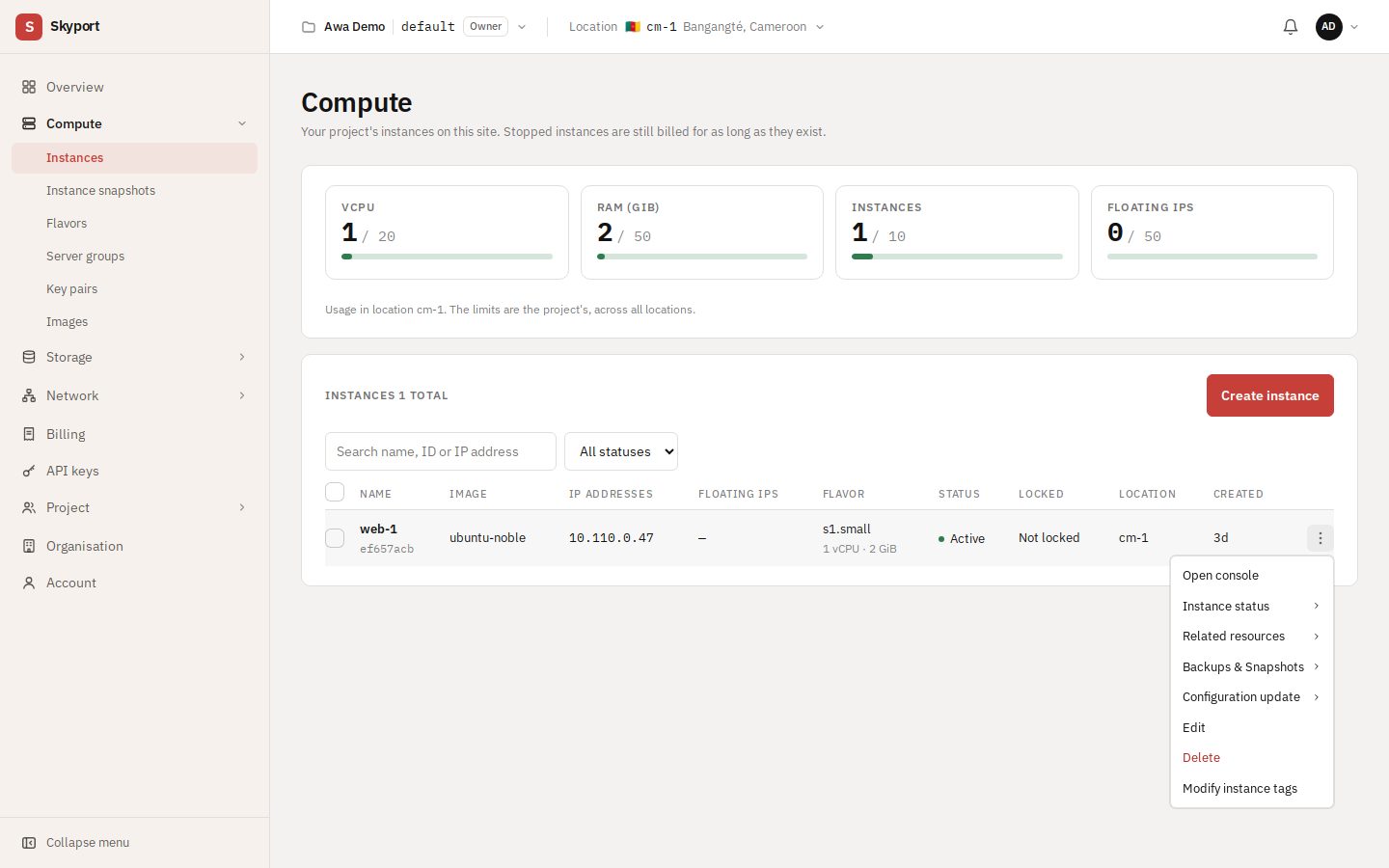
- Start, Stop, Reboot
- The everyday lifecycle. A stopped instance is still billed.
- Associate floating IP, Attach volume, Manage security groups
- Connect the instance to what it needs.
- Resize
- Move to another flavor, then Confirm resize or revert it.
- Create snapshot
- See below.
- Lock
- Blocks actions until unlocked, to avoid mistakes.
- Shelve, Rescue, Rebuild instance
- For less common cases: free the host, repair a system that no longer boots, start again from an image.
- Delete
- Cannot be undone. The system disk goes with the instance; data volumes stay, except those created with Delete with the instance.
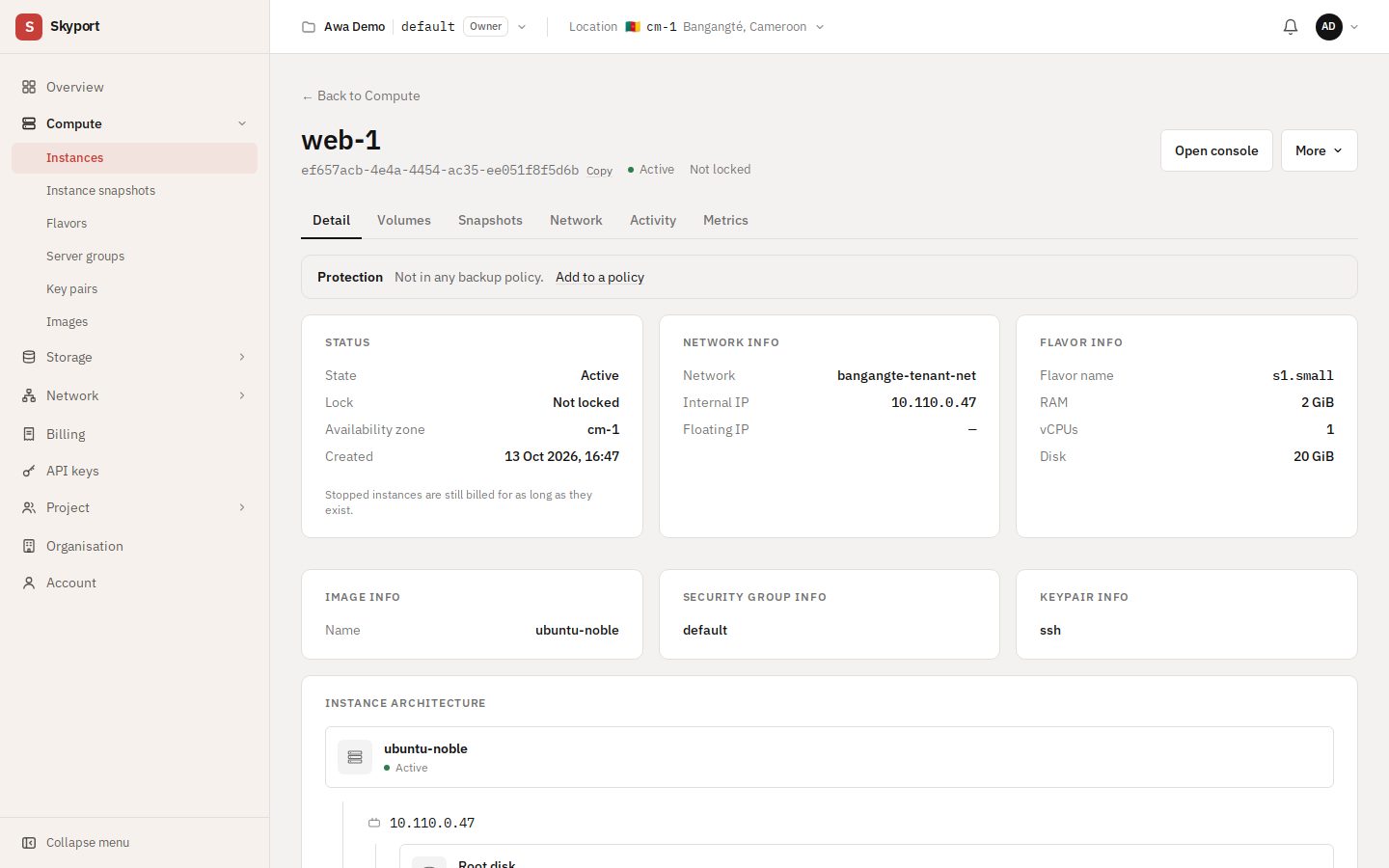
The instance page has Detail, Volumes, Snapshots, Network, Activity and Metrics tabs.
Instance snapshots#
A snapshot keeps the state of an instance's disks and can start a new instance. It is ready when its status is Active. Find them in Compute › Instance snapshots, and launch an instance from one in the wizard's My images tab.
Flavors and server groups#
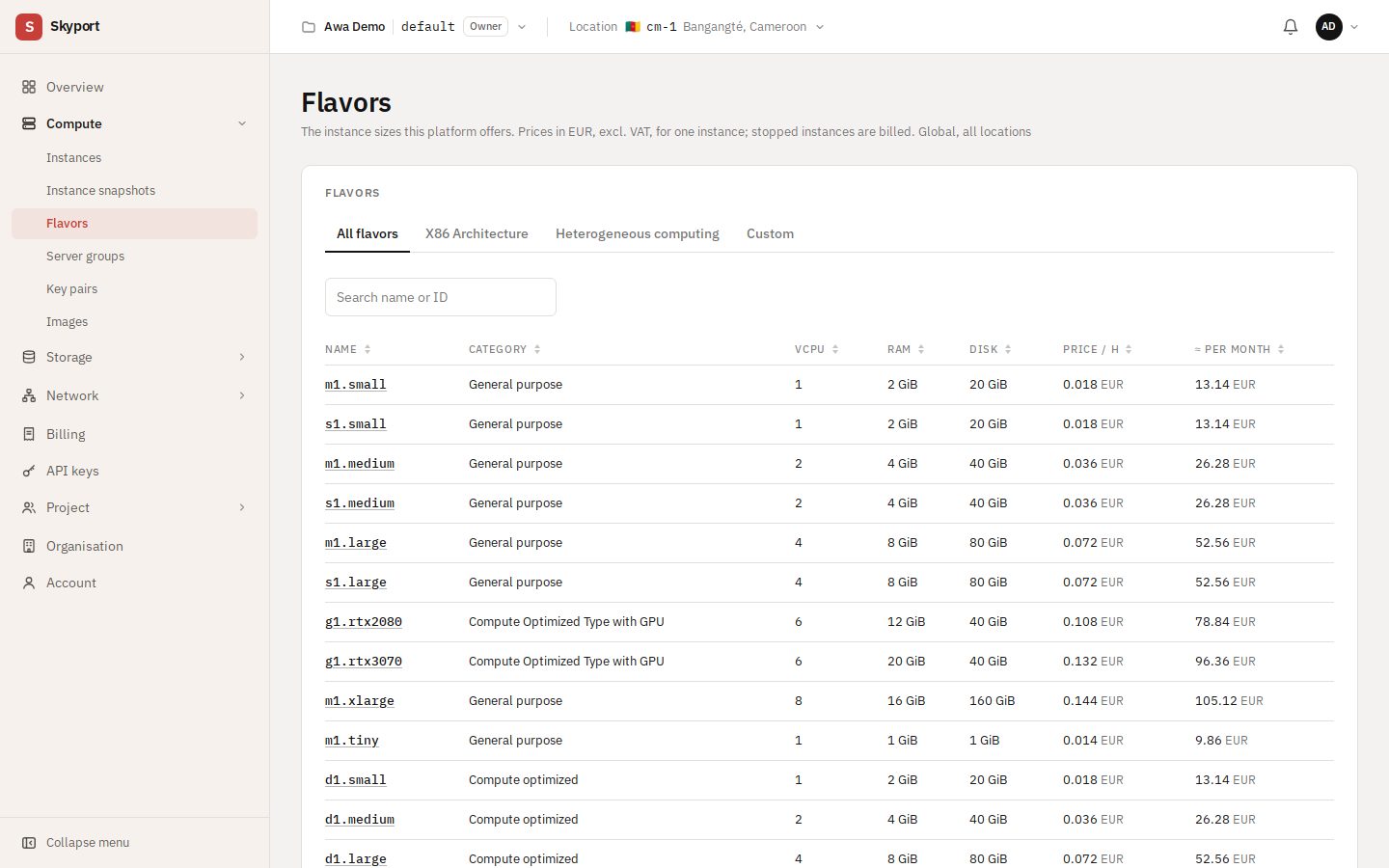
Compute › Flavors lists the available sizes with their detail. Compute › Server groups manages the placement rules chosen in the Placement step.