 Skyport
Storage
Updated October 17, 2026
Block storage (volumes), their copies, scheduled backups and S3-compatible object storage.
Volumes#
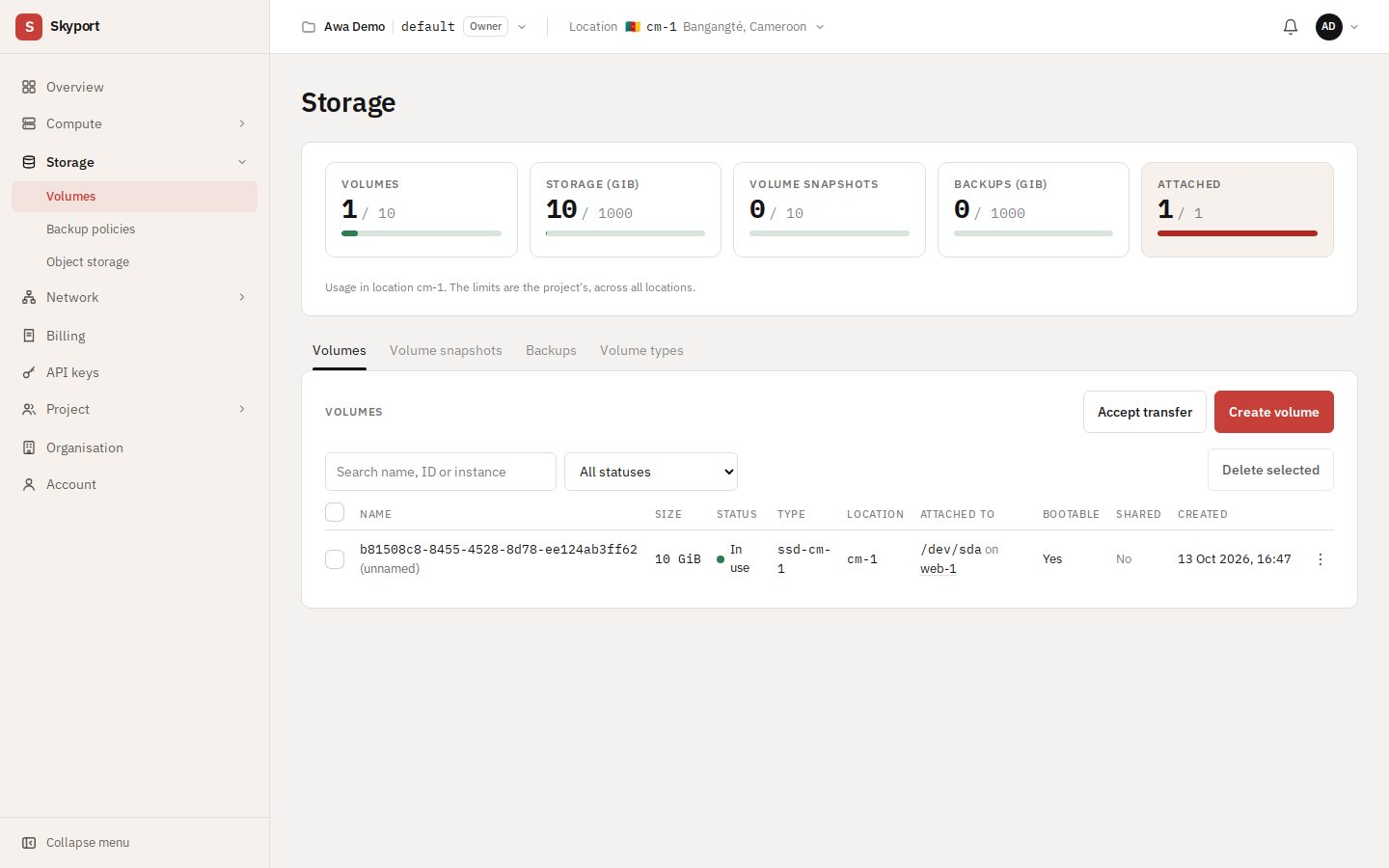
Storage › Volumes has four tabs: Volumes, Volume snapshots, Backups and Volume types. The counters at the top show usage in the selected location against the project's limits.
Create a volume#
- Choose Create volume.
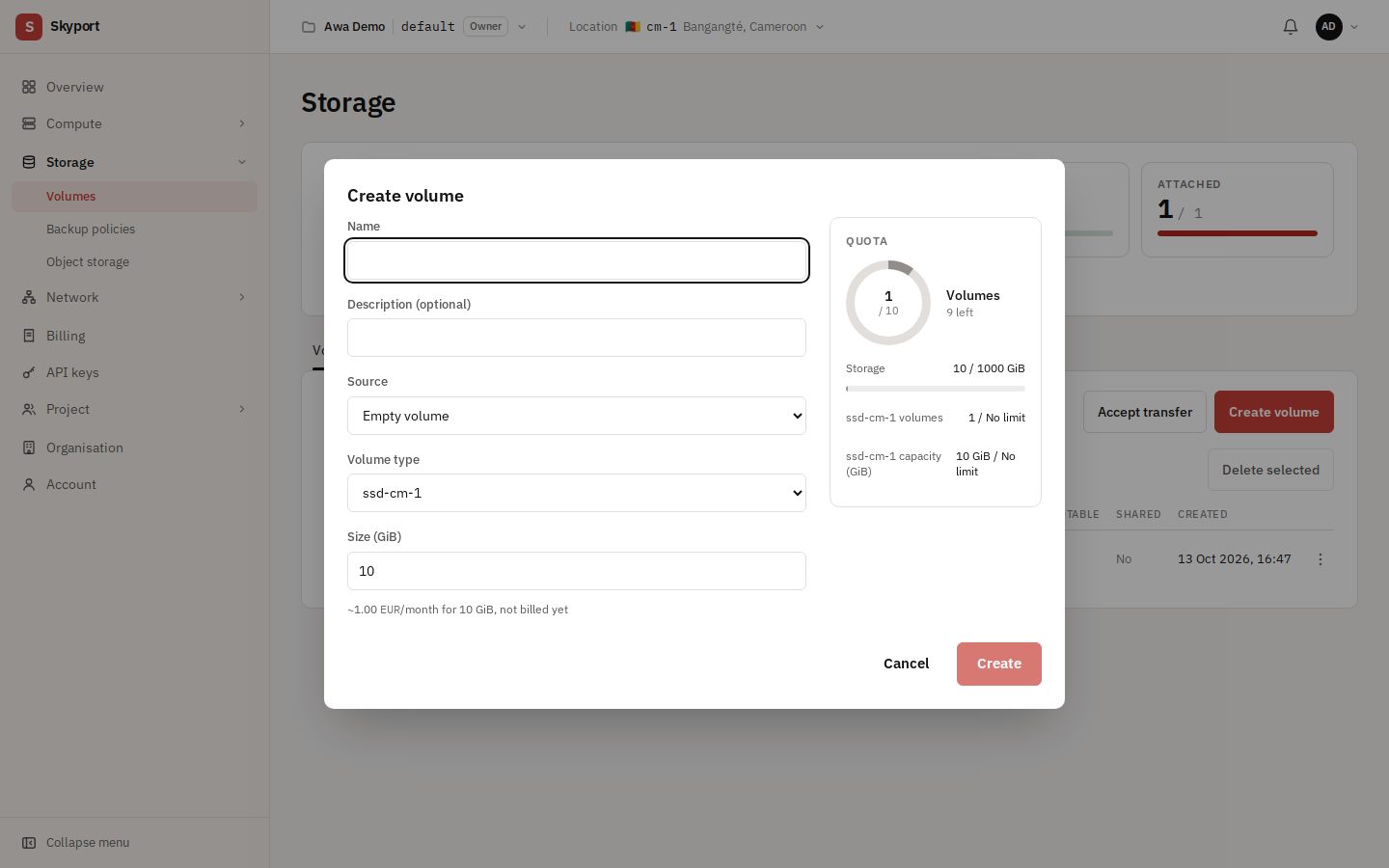
- Pick the Source: empty volume, image, snapshot, or another volume.
- Set the Size (GiB) and the Volume type, then Create.
Attach and detach#
In the volume's menu, Attach to instance connects it to an instance in the same location; Detach disconnects it. The Attached to column then shows the device (for example /dev/vdb). Inside the instance, format and mount it like a new disk before first use.
Volume snapshots#
Create snapshot freezes its content. For an attached volume, the snapshot holds only what is already written to disk: pause writes in the instance for a consistent copy. Revert to latest snapshot puts the volume back in that state; data written since is lost.
Volume backups#
Create backup copies the volume, in Full or Incremental mode (only the blocks changed since the last backup; available once a full backup exists). For an attached volume the backup is taken live: pause writes for a consistent copy. Restore puts a backup back on a volume.
Extend, clone, change type#
- Extend
- Grows the volume, even attached. Then grow the partition and file system inside the instance. A volume can never be shrunk.
- Clone volume
- Makes a copy of the volume, ideally with no reads or writes in progress.
- Change type
- Only possible without snapshots; can take several hours for a large volume.
- Create image
- Makes an image from the volume. See Images.
Transfer a volume to another project#
- In the volume's menu, Create transfer. Copy the Transfer ID and the Auth key: the key is shown only once.
- Send both values to the receiving project over a safe channel.
- In the receiving project, Accept transfer with those two values. The volume joins that project.
Backup policies#
A policy takes snapshots or backups of your volumes and instances on a schedule, then deletes the oldest automatic copies beyond the number to keep (1 to 30).
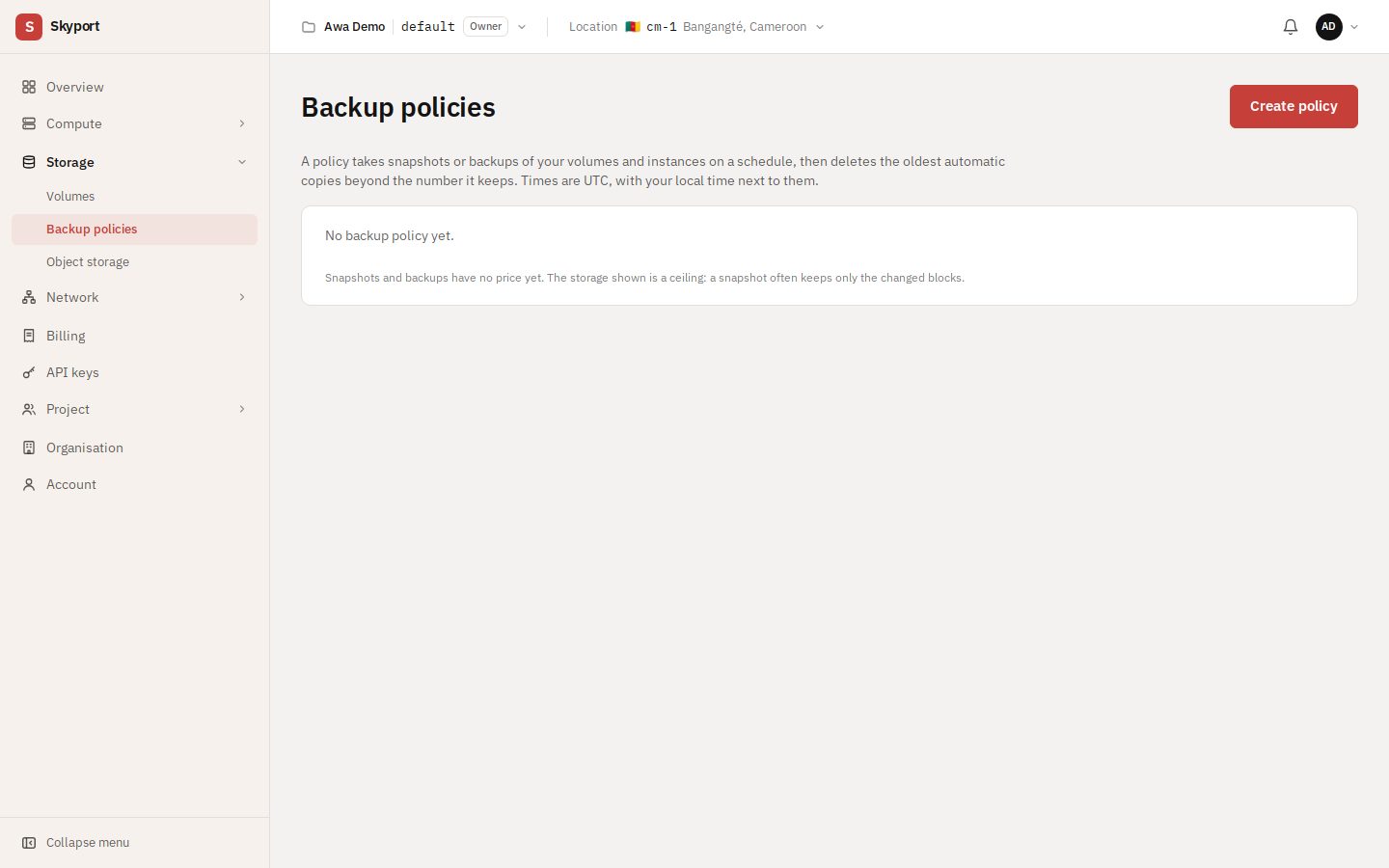
- In Storage › Backup policies, choose Create policy.
- Choose what it protects, the schedule and how many copies to keep. Times are in UTC; your local time is shown next to them.
- Save. The policy's page then shows the history of its runs.
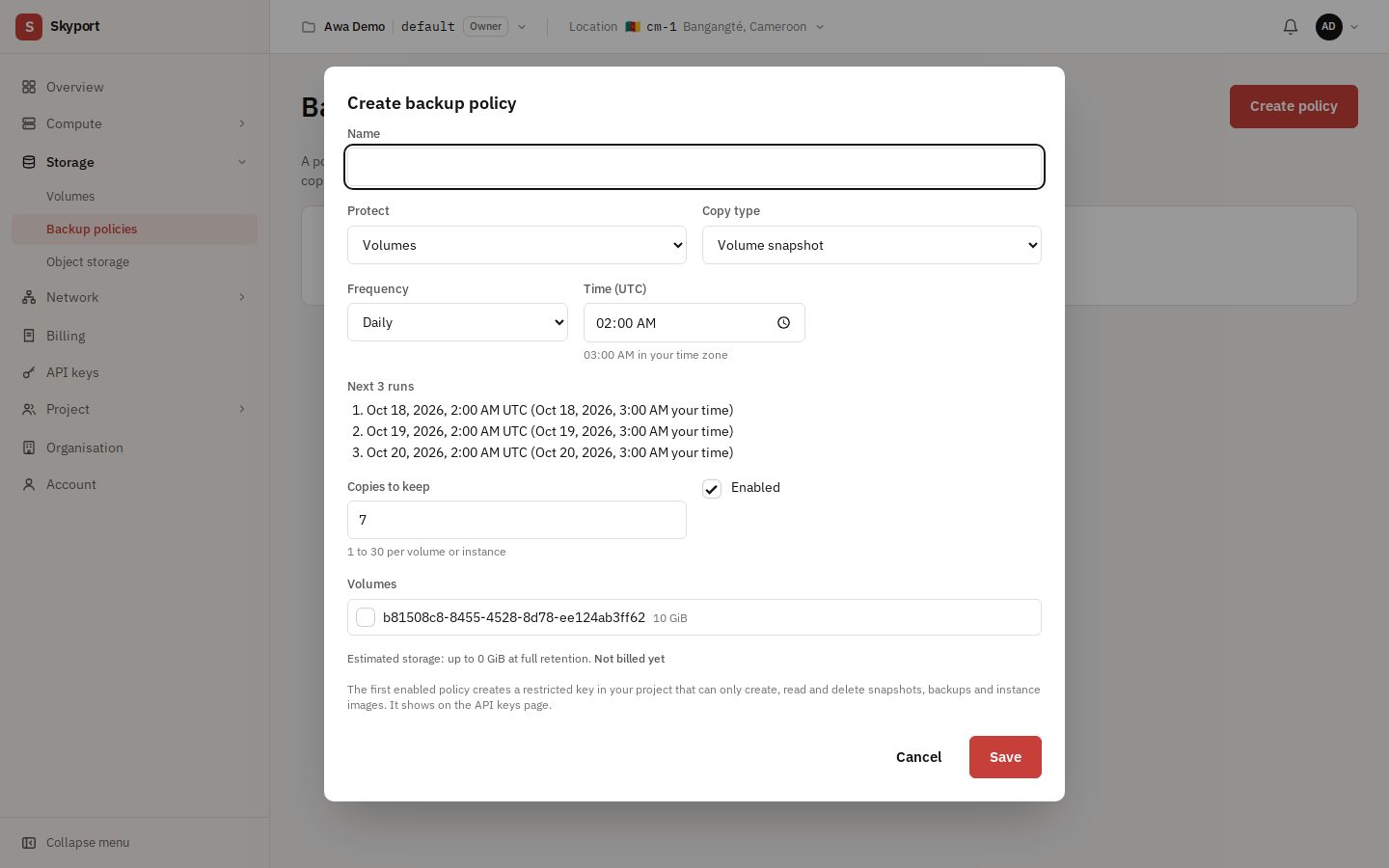
The first policy you enable creates a restricted key in your project, which can only create, read and delete snapshots, backups and instance images. It shows among your API keys; do not revoke it while you use policies.
Object storage#
Object storage provides S3-compatible buckets, at the same site as your instances. Data is stored at a single site, with no copy elsewhere: keep another copy of anything that matters.
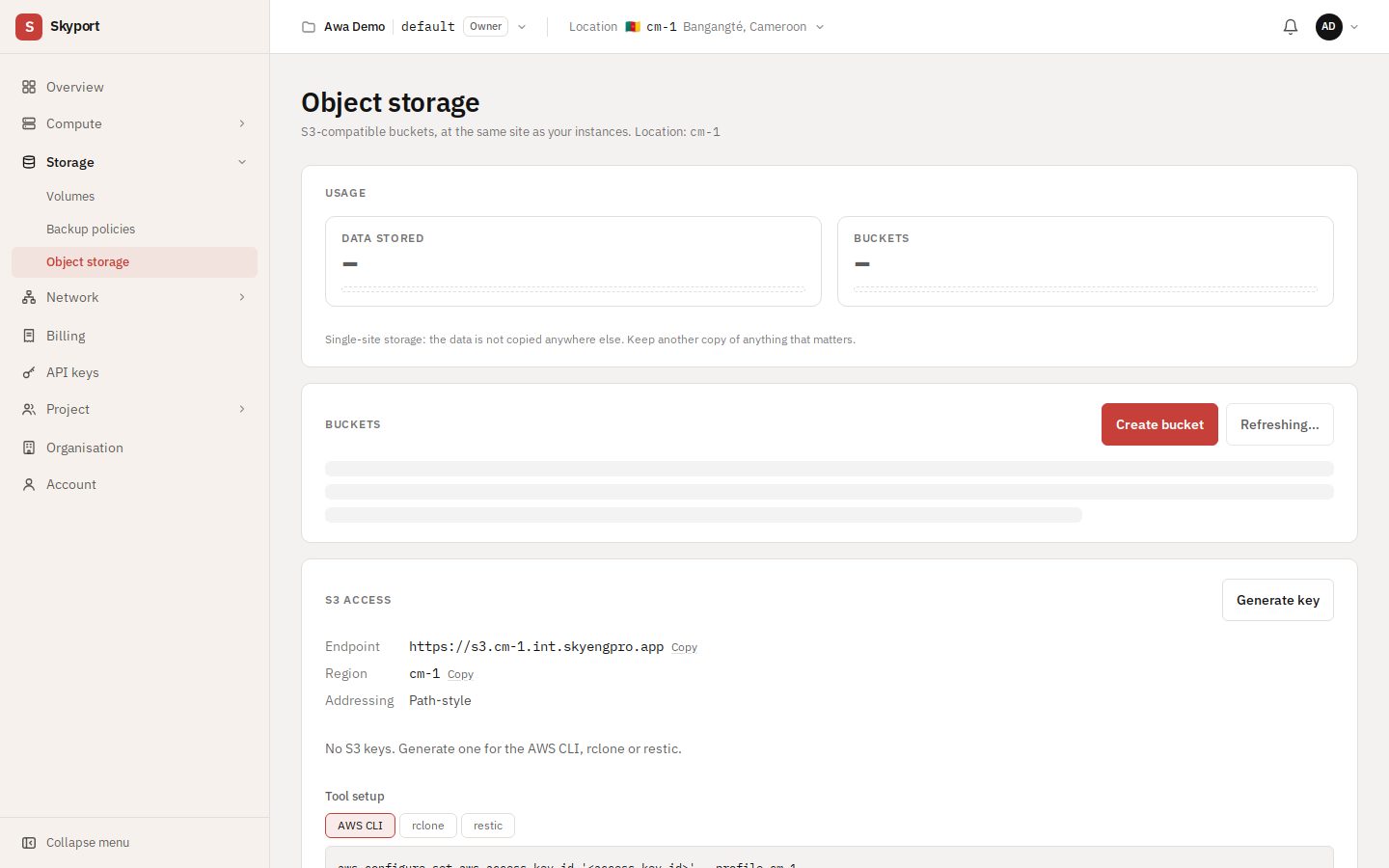
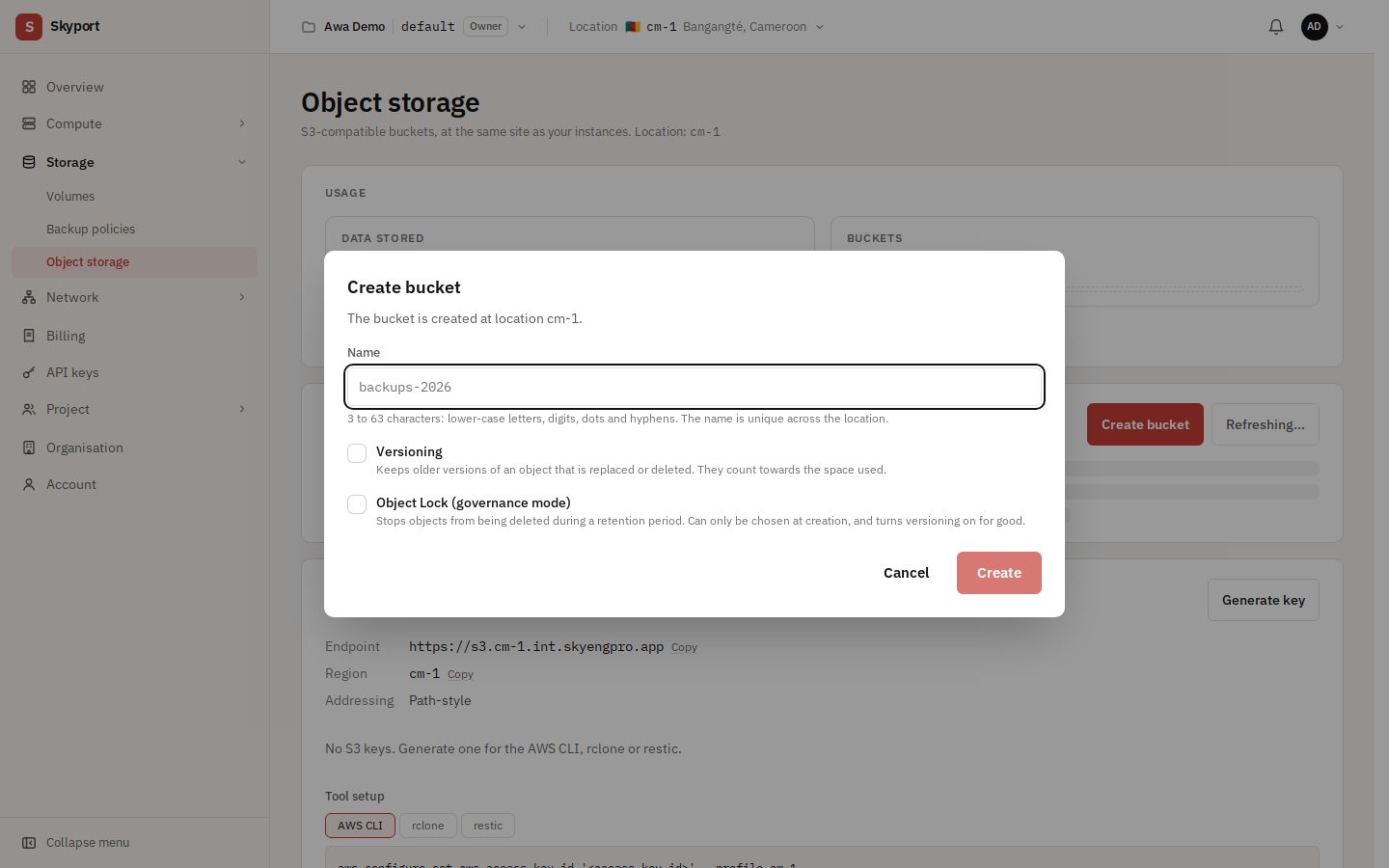
- Create bucket: 3 to 63 characters (lowercase, digits, dots, hyphens), unique at the location. Versioning keeps old versions; object lock prevents deletion for a retention period, and can only be chosen at creation.
- Generate an S3 key for the AWS CLI, rclone or restic. The secret key is shown only once.
- In a bucket's settings, automatic expiry deletes objects after a number of days.