 Skyport
Getting started
Updated October 17, 2026
This guide takes you from creating your account to your first visit to the console. It takes about five minutes.
There is nothing to install: everything happens in your browser.
Create your account#
- Open the Skyport portal.
- Choose the account type: Personal or Business. A business also gives the company name, its VAT number (or its tax ID outside the European Union) and a phone number.
- Fill in your details: first name, last name, email and username. The username is what you sign in with and cannot be changed later: 2 to 64 characters, lowercase letters, digits, dot, dash or underscore, starting with a letter or digit.
- Enter your billing address. Your country decides how VAT applies to your invoices.
- Accept the terms of use and the privacy policy, then choose Create account.
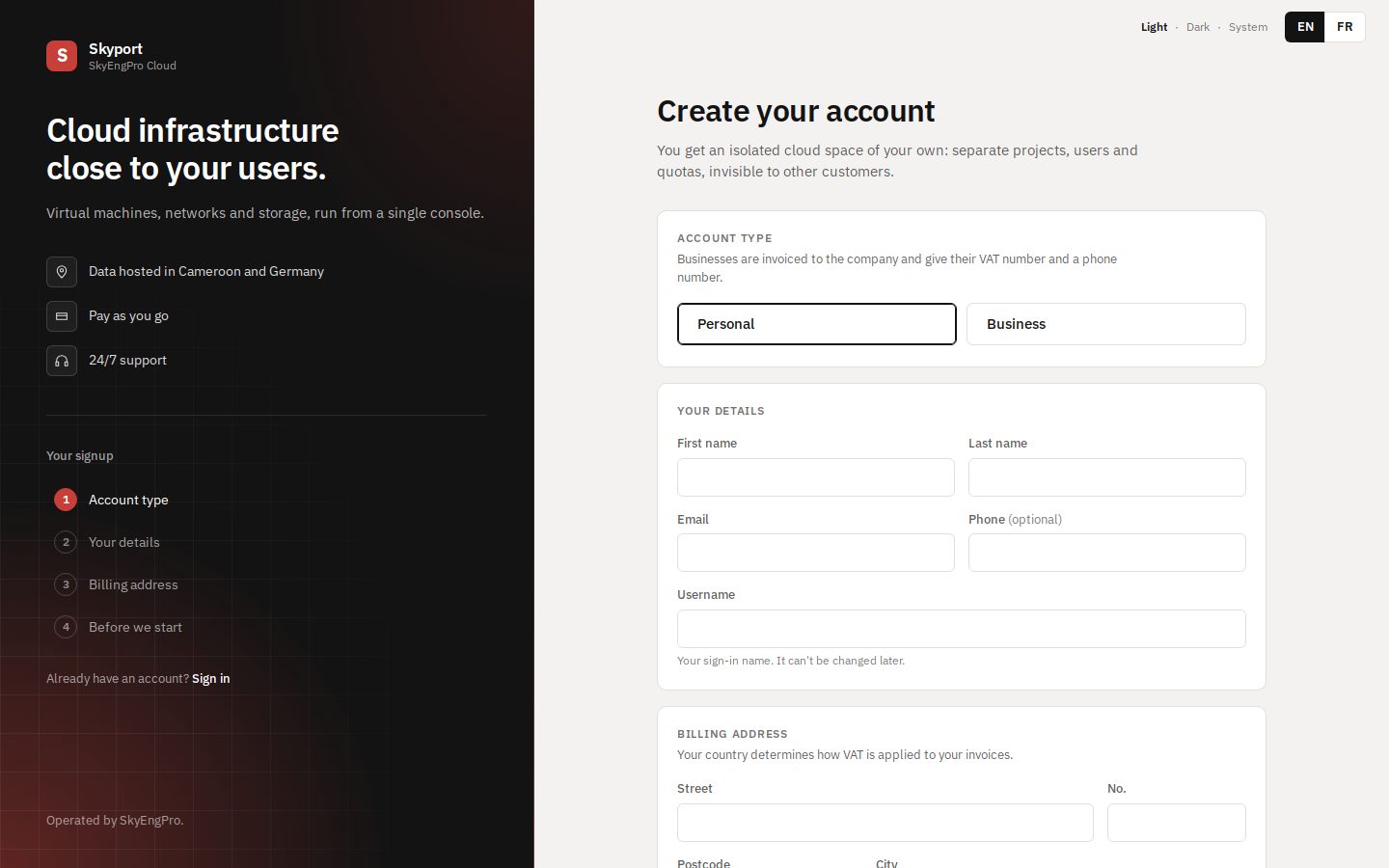
The form does not ask for a password. You choose it in the next step, from the link we email you.
Confirm your address#
- Open the email sent by
noreply@skyengpro.com. If it does not arrive, check your spam folder, or choose Resend the email on the portal page. - Follow the link in the email. It takes you straight to choosing your password.
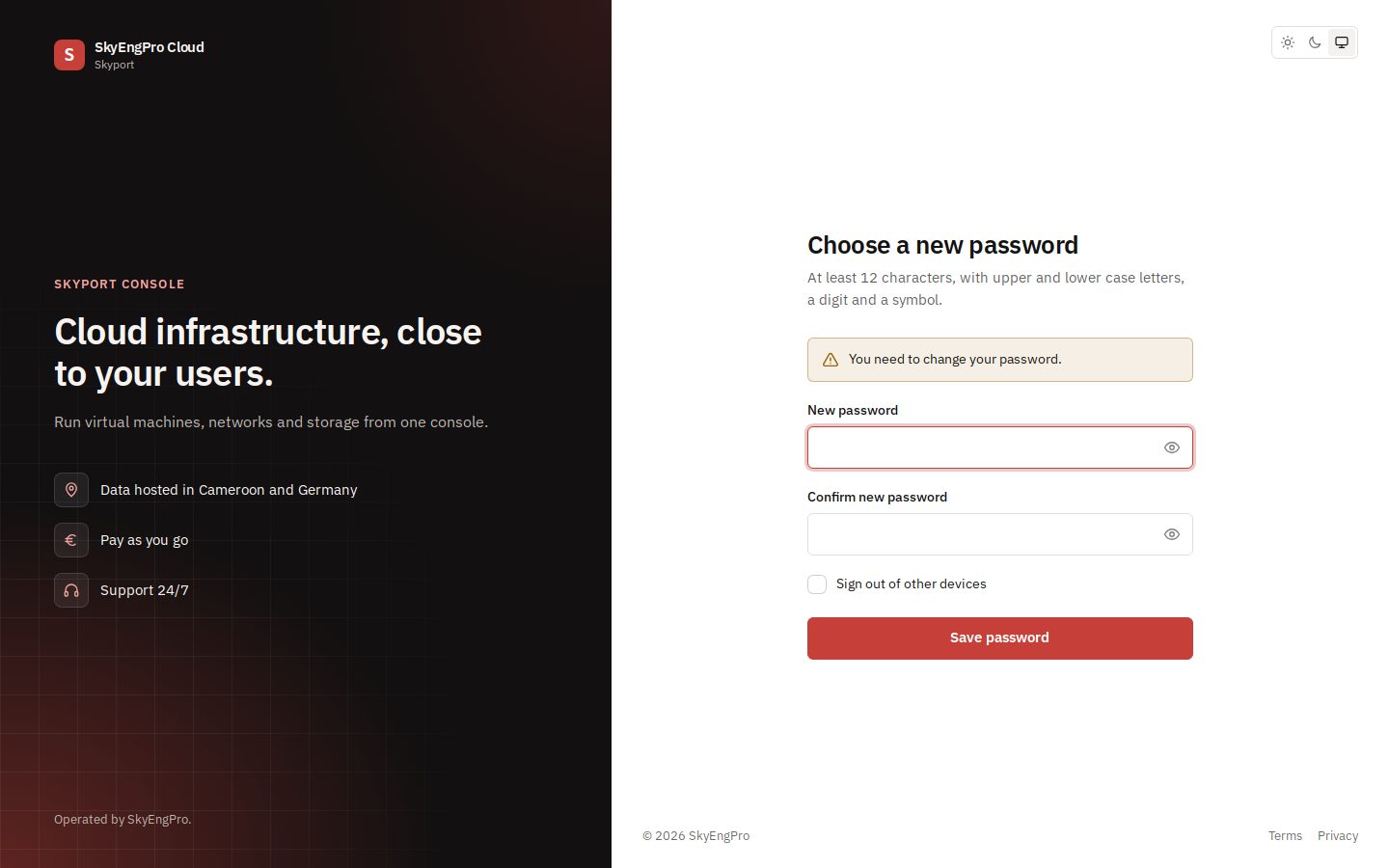
- Choose a password of at least 12 characters, with upper and lower case letters, a digit and a symbol, different from your username. Confirm it.
- Skyport prepares your space for a few seconds, then opens the console. An email also confirms that your cloud is ready.
A first look at the console#
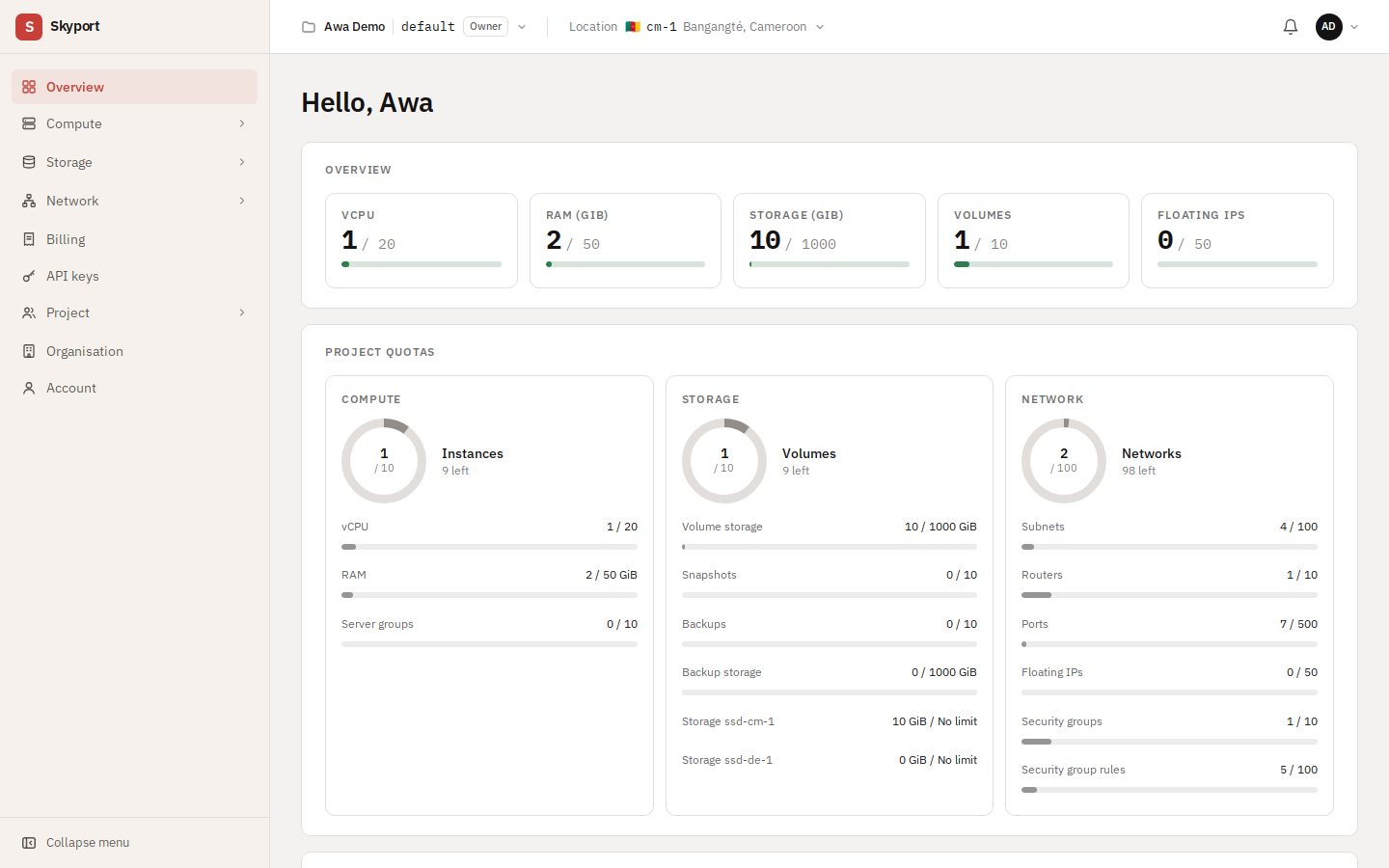
The Overview sums up your project: the resources in use against your quotas, then the detail per service (Compute, Storage, Network).
The account is prepaid. Until it has credit, an “Add credit to get started” banner shows and you cannot create resources. See Billing.
The top bar#
- Project: your organisation, your project (the first one is called
default) and your role. See Projects and teams. - Location: where the resources you see and create run.
- The bell shows your notifications, and the menu on the right leads to your account.
Locations#
Switching location in the top bar changes the machines and volumes shown: each resource stays in the location where you created it. When a list holds resources from other locations, a Show all locations link appears above it.
| Location | Place | Status |
|---|---|---|
cm-1 | Bangangté, Cameroon | Open |
de-2 | Germany | Open |
de-1 | Germany | Lab |
The de-1 location is a lab: use it to try things out, not for production services.
Signing in afterwards#
Next time, choose Sign in on the portal, then enter your username and password.