Skyport
Network
Updated October 17, 2026
Your project's private networks, the way out to the internet, public addresses and traffic rules.
Networks#
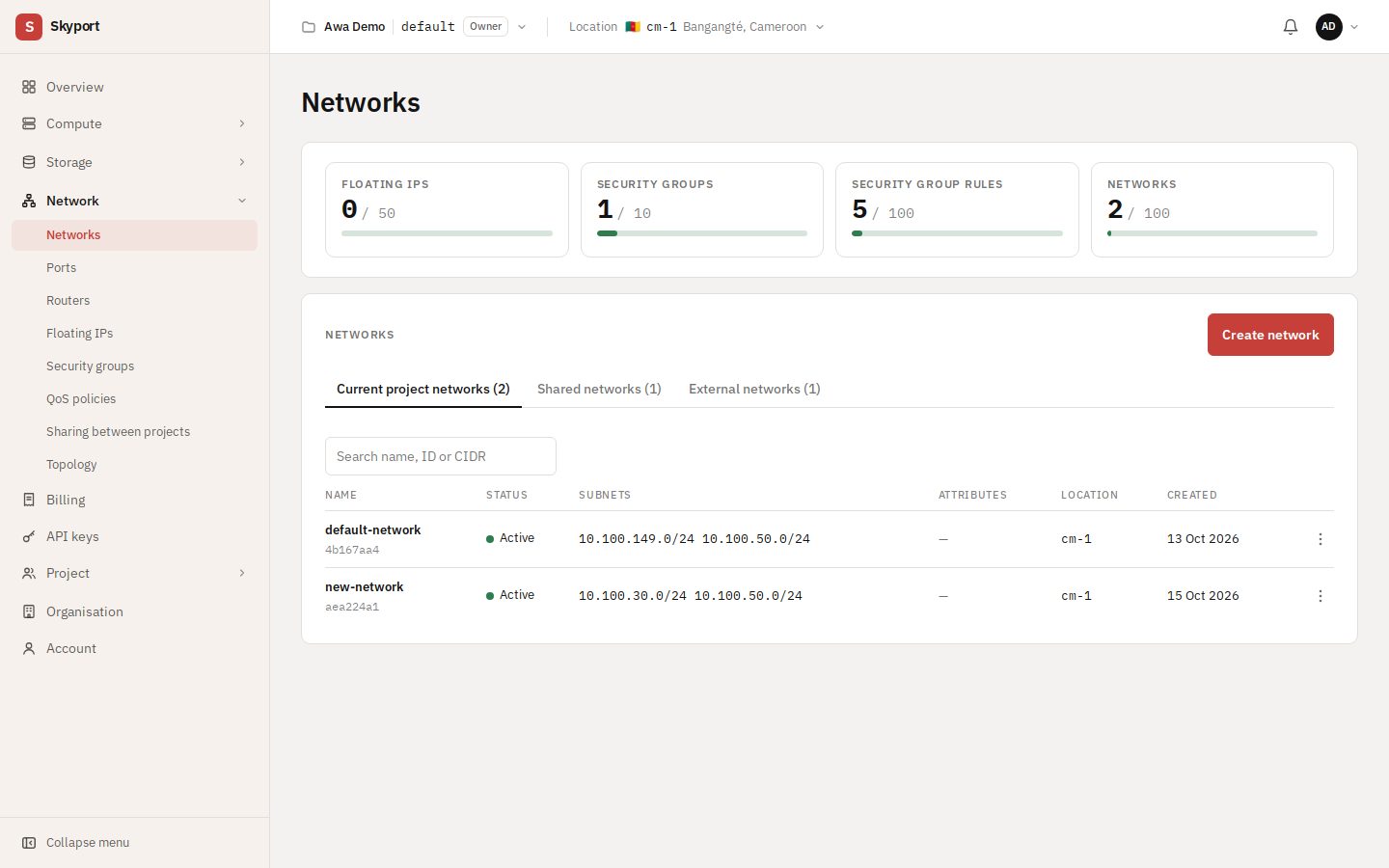
Every project starts with its own private network, its subnet and a router connected to the internet, all three named default. Network › Networks lists them in three tabs: the project's networks, networks shared with you, and external networks.
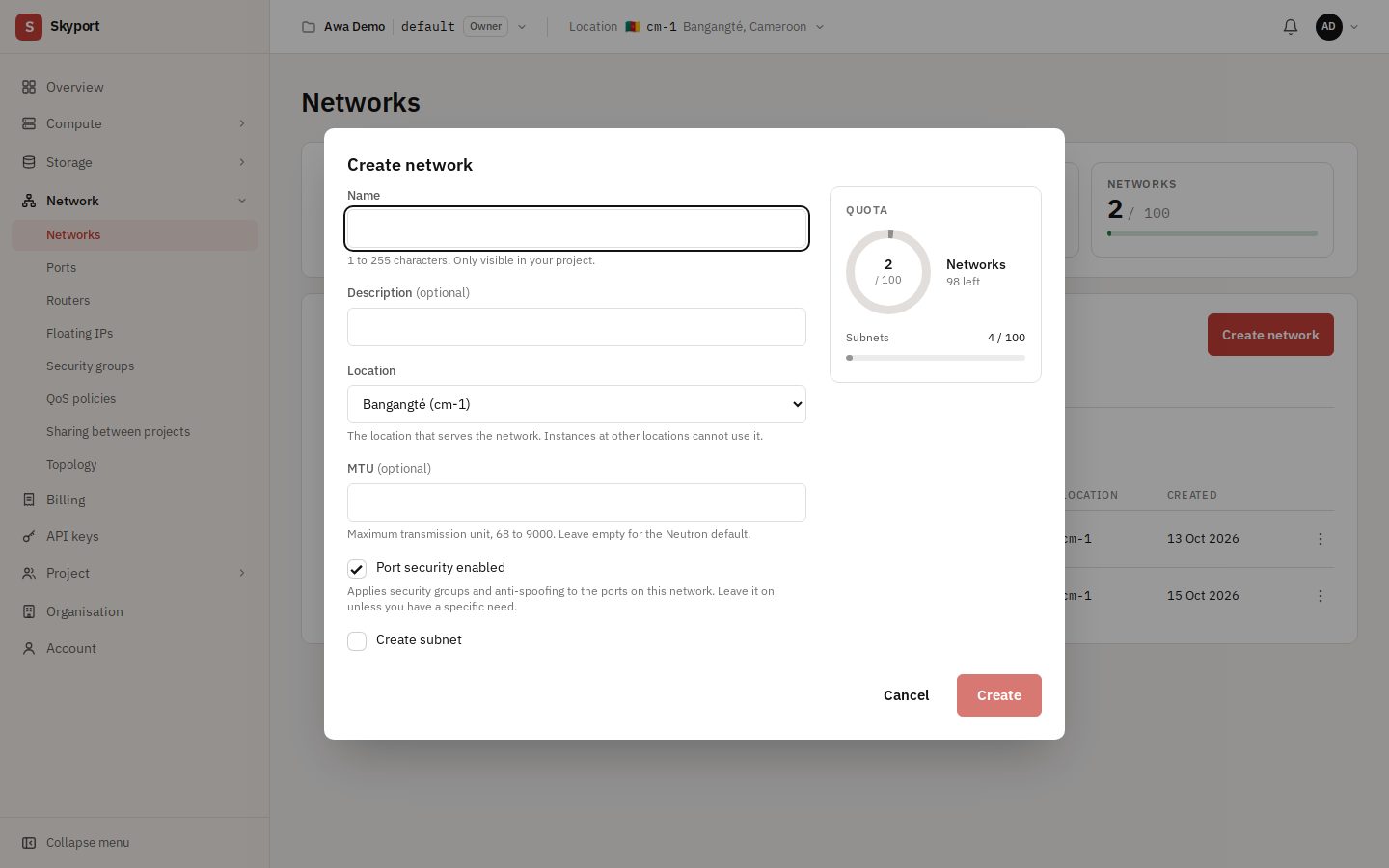
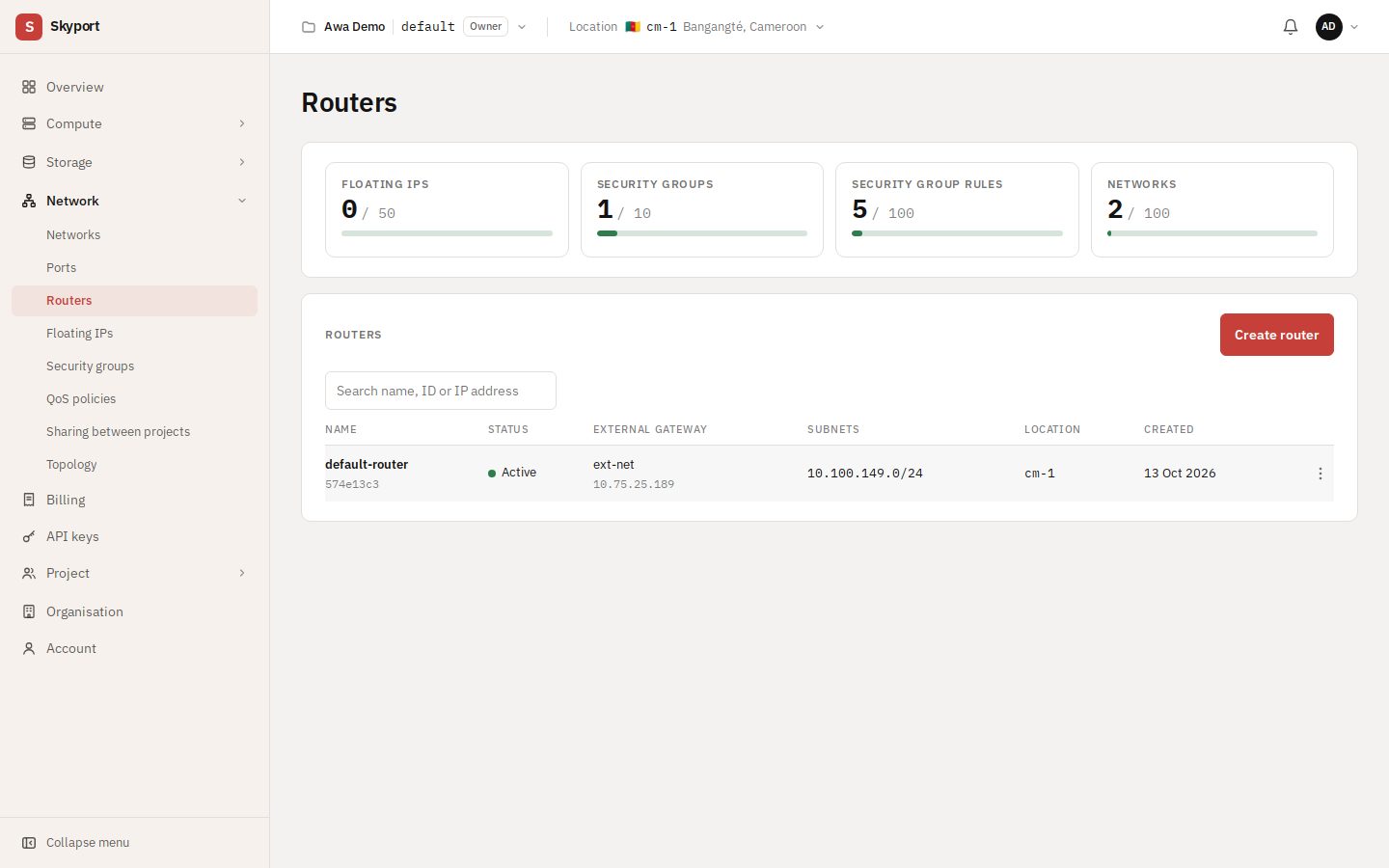
Create network adds a private network; give it a subnet, and connect it to a router to reach the internet. Ports lists network interfaces, and Routers the routers and their interfaces.
Add a subnet#
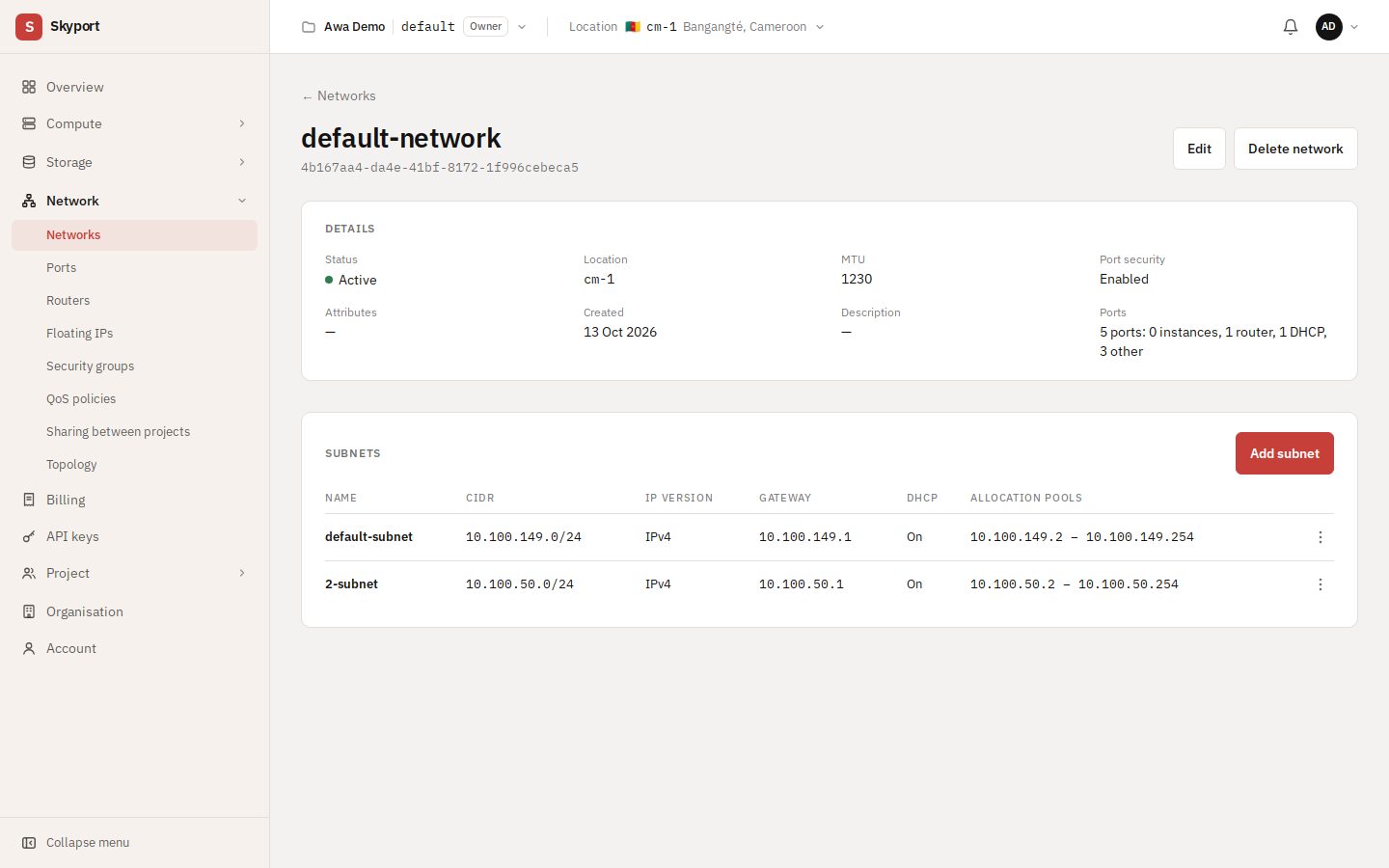
Open a network, then choose Add subnet. The default network takes its subnets from a shared address pool, which the dialog shows:
- Leave the CIDR empty (Automatic): you get the pool's next free block. This is the simplest.
- Or enter a block inside the pool's range. A block outside it is refused before sending.
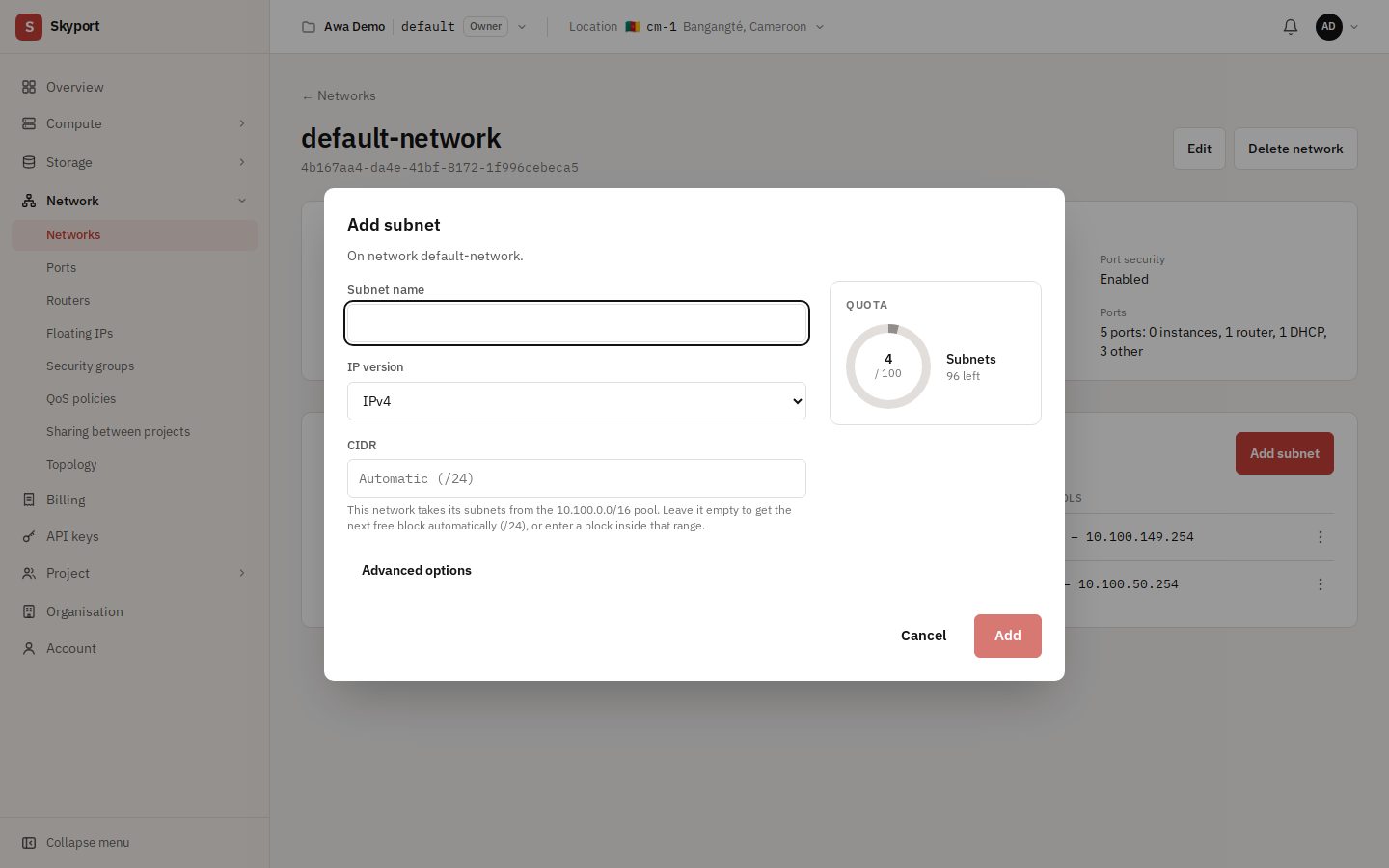
On a network you created yourself, the CIDR is free, within a private range.
Floating IPs#
A floating IP is a public address you attach to an instance to make it reachable from the internet.
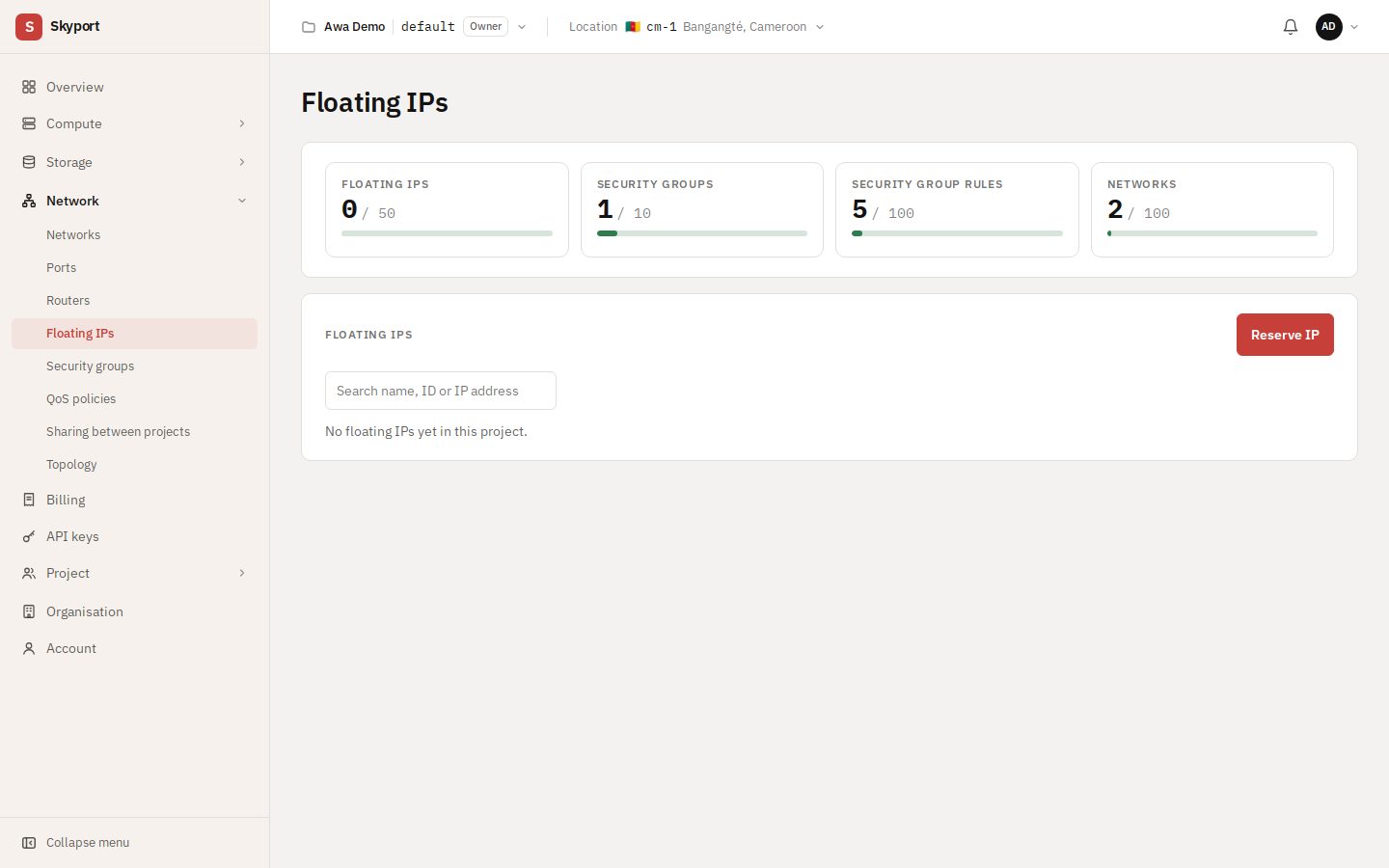
- In Network › Floating IPs, choose Reserve IP.
- In its menu, choose Attach to instance. Leave the instance address on automatic unless the instance has several interfaces.
- To give it back, choose Release.
A public address is billed for as long as it is reserved, attached or not. Release the ones you no longer need.
Security groups#
A security group is a set of rules that allow traffic to or from your instances. Anything not allowed is blocked.
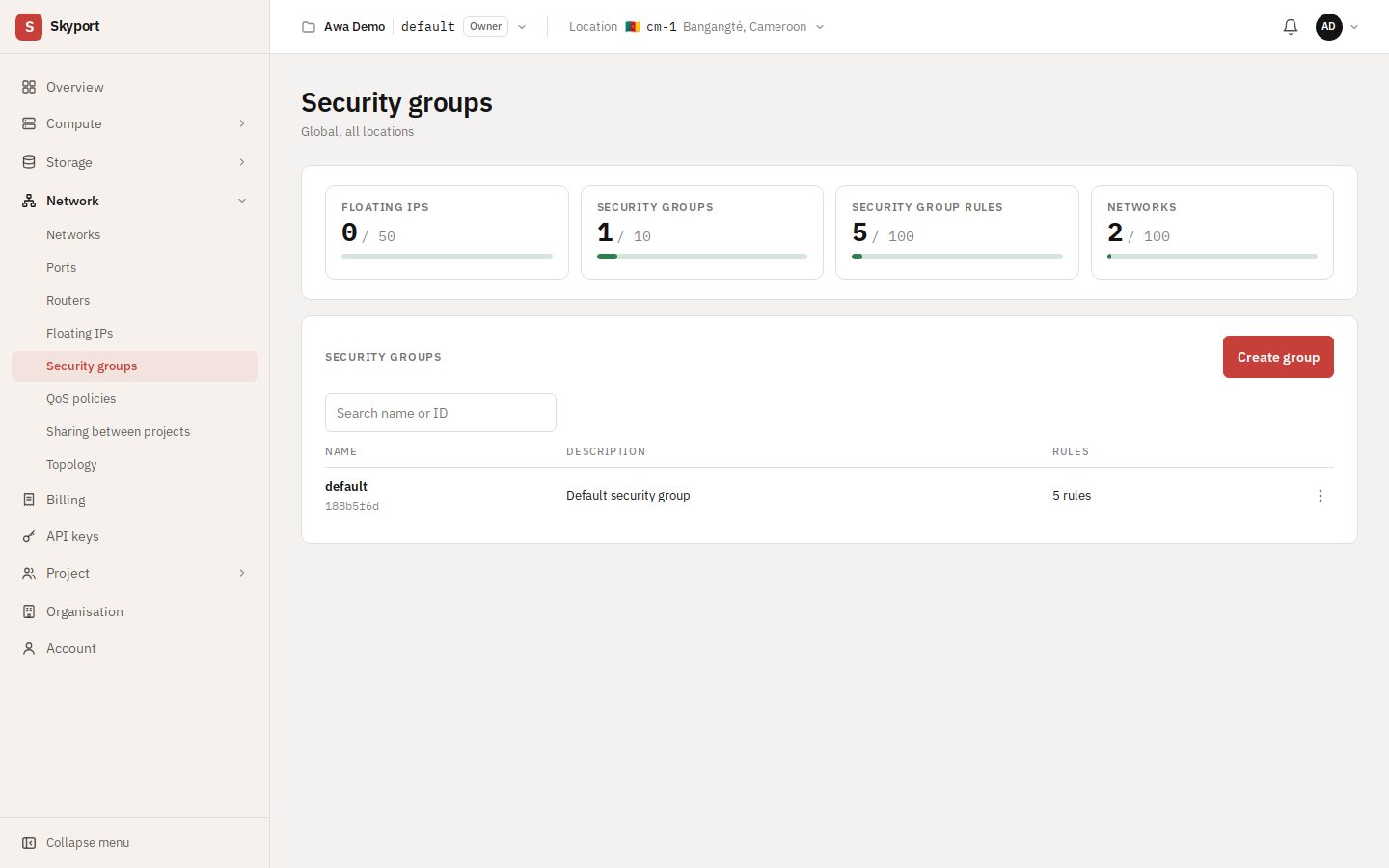
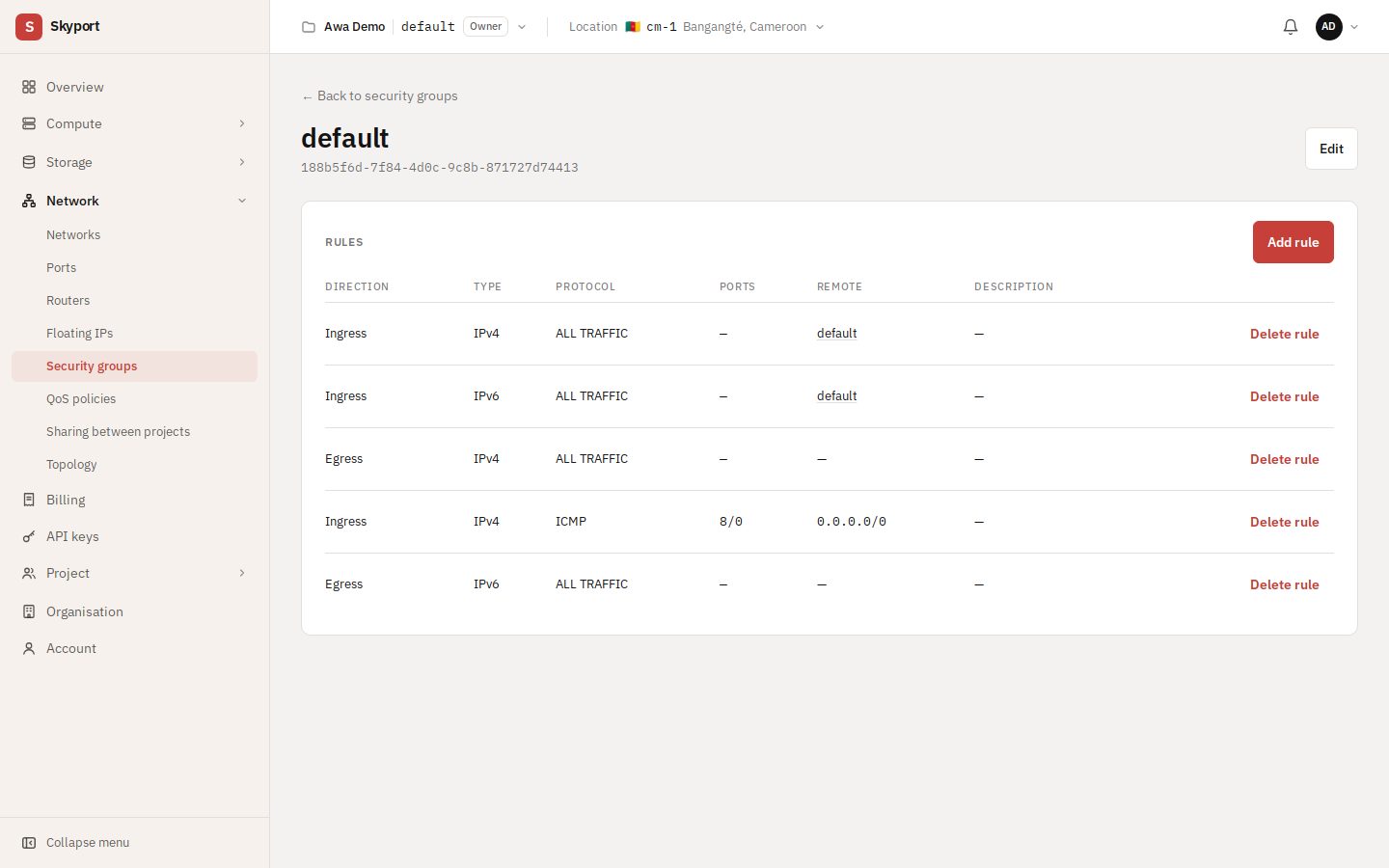
- In Network › Security groups, open a group or choose Create group.
- Choose Add rule: the direction (ingress or egress), the protocol or a common service, the port or port range, and the remote source.
- For example, for SSH: choose SSH (TCP 22), ingress, from your own address (for example
203.0.113.10/32) rather than the whole internet.
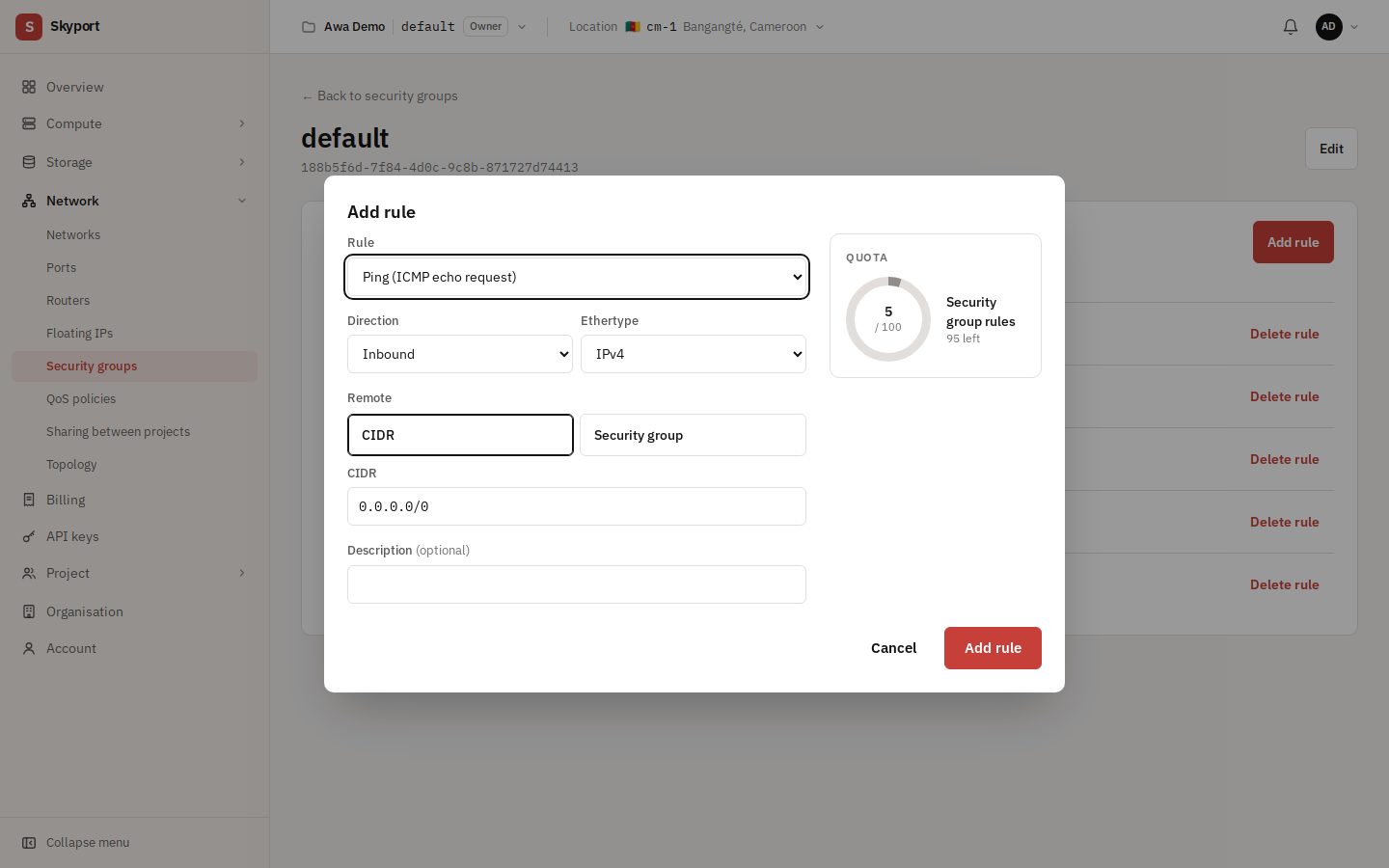
Allow ping and ICMP#
- Ping (ICMP echo request): allows ping. On an IPv6 rule, Skyport uses the matching ICMPv6 type.
- All ICMP: every ICMP message.
- Custom ICMP rule: an ICMP type and, if needed, an ICMP code (0 to 255).
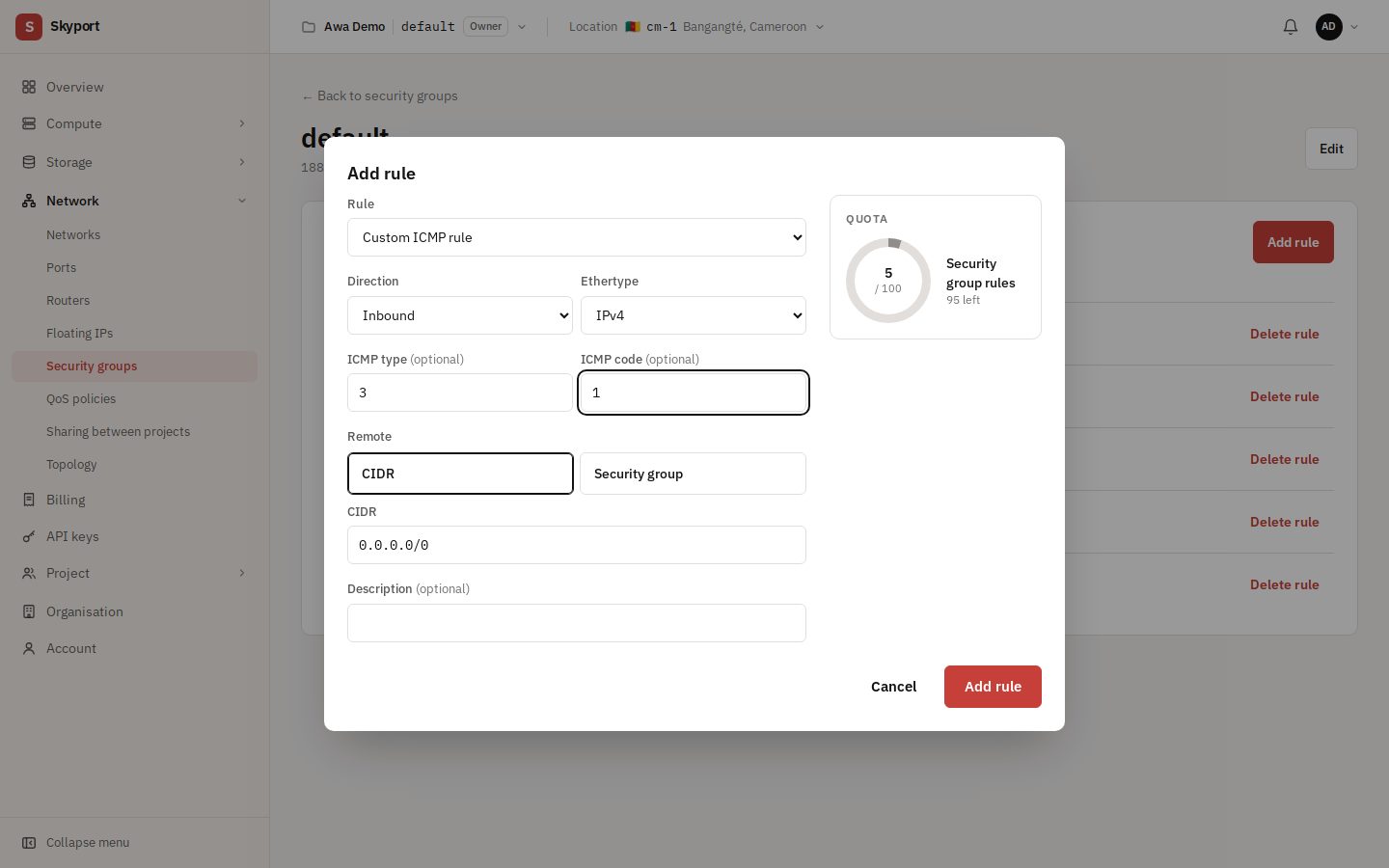
Apply the group to an instance when you create it, or later with Manage security groups.
Topology#
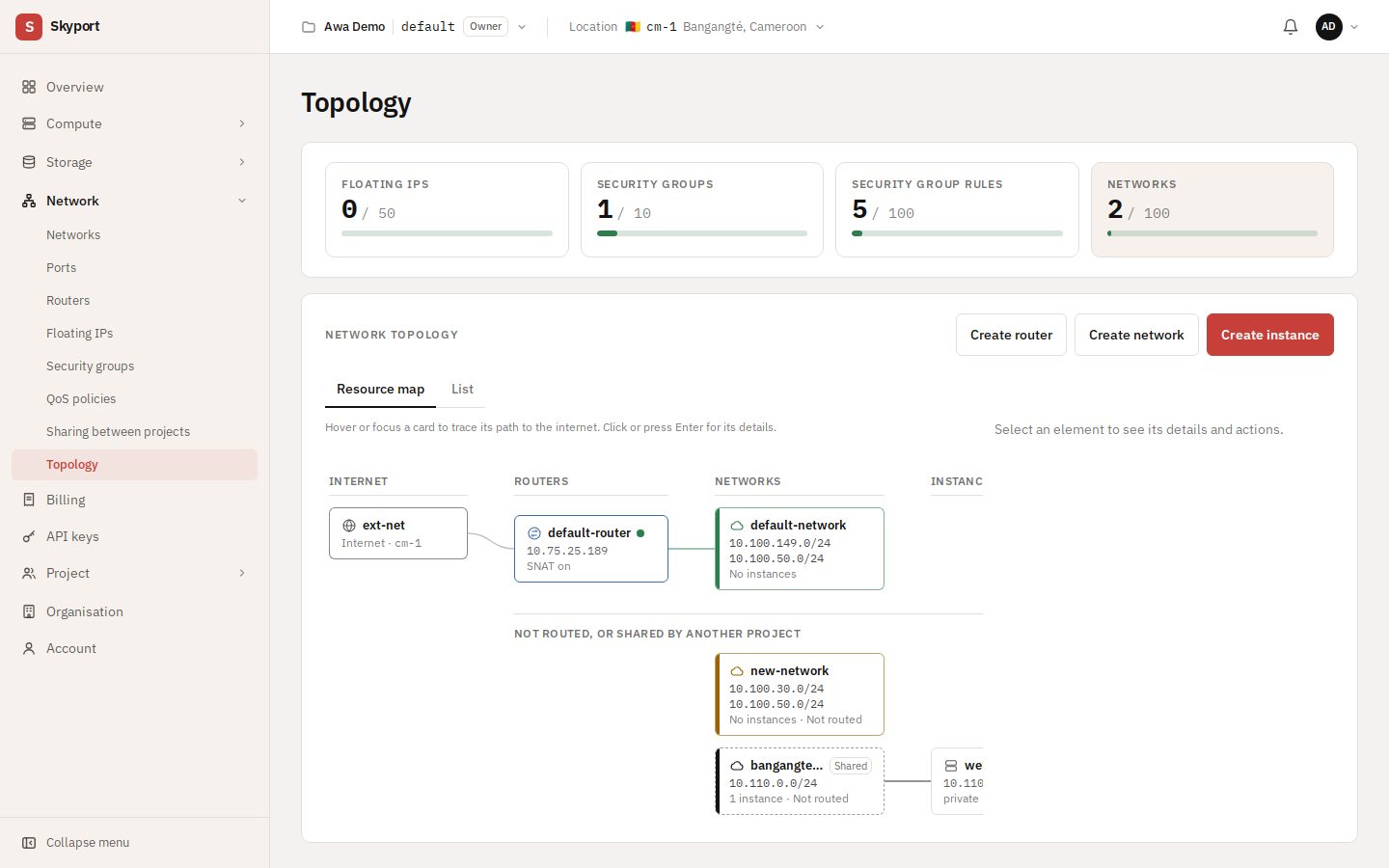
Network › Topology draws your networks, routers and instances for the selected location. Hover over an item to follow its path to the internet; click it for its detail and actions.